ERP Integrator · for desktop applications

ERP Integrator for Business Central

Connect your own Windows application to Microsoft Dynamics 365 Business Central. Hand ERP Integrator your data and it creates or updates the items, with the field mapping, company rules and status window our CAD and PDM integrations use.

One engine, every application

The engine behind our integrations, in your program

Every integration on this site, from Autodesk Vault and SOLIDWORKS PDM to Excel, runs on the same engine: ERP Integrator. It connects to Business Central, maps each property to its ERP field, applies your company rules, creates or updates the items and reports the result of every one.

Your own desktop application can use it the same way. A product configurator, a quoting tool, an in-house engineering program or a simple import from a file: the application reads its data as it always has and hands it to ERP Integrator. What goes where in Business Central is kept in settings, so it can change without a new release of your program.

  • Any desktop application

    A .NET 8 program references the engine and calls one send with its data.

  • Mapping in settings

    Which value fills which Business Central field is configured, not coded.

  • Status per item

    The engine's status window, a result for every item and a log for each run.

  • Five ERPs

    Business Central, Dynamics 365 Finance and Operations, SAP S/4HANA, SAP Business One and Odoo.

Video

A CSV file to Business Central from a small Windows application

The demo application does one thing: it reads items from a CSV file. ERP Integrator does the rest. It creates the items in Business Central, shows its status window while it works and reports the result in the application's own grid.

How it works

From your application's data to items in Business Central

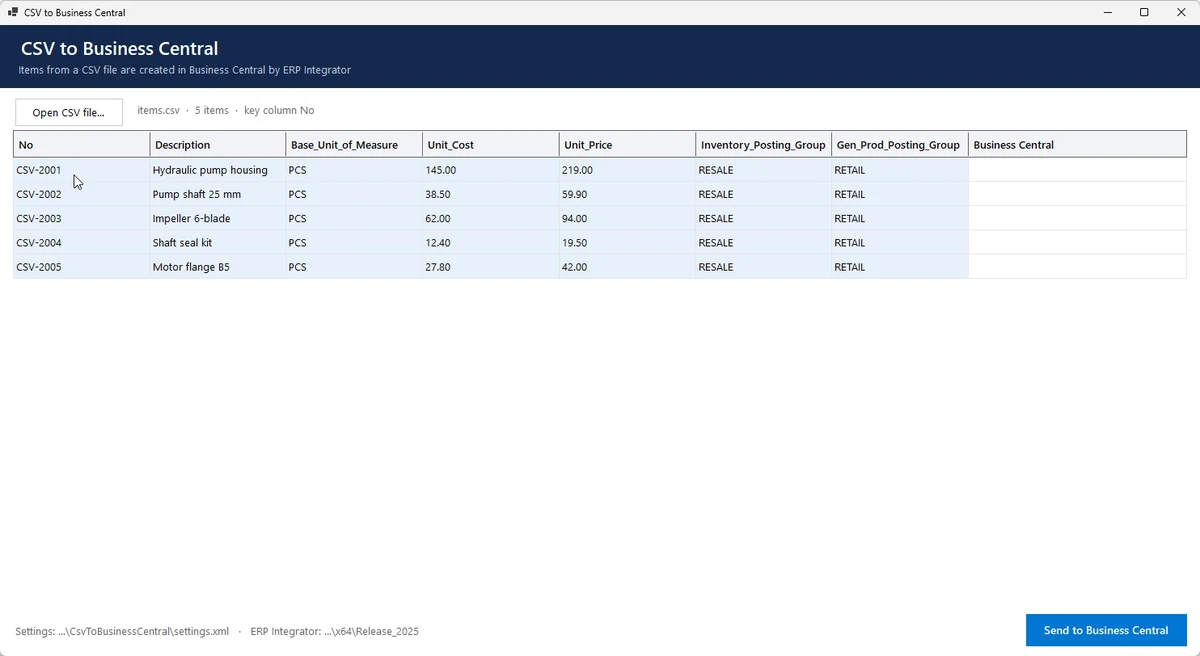
CSV to Business Central demo application listing five items from a CSV file, the columns that are sent to Business Central tinted blue

Your application

The application reads its own data

The demo opens a CSV file of items: number, description, unit of measure, cost and price. That is all the application knows about. Columns that the ERP Integrator settings send to a Business Central field are tinted, so it is clear what will go where.

  • Your data can come from anywhere: a file, a database, a model or the user's input.
  • Each item is handed over as a row of property names and values, keyed by the item number.
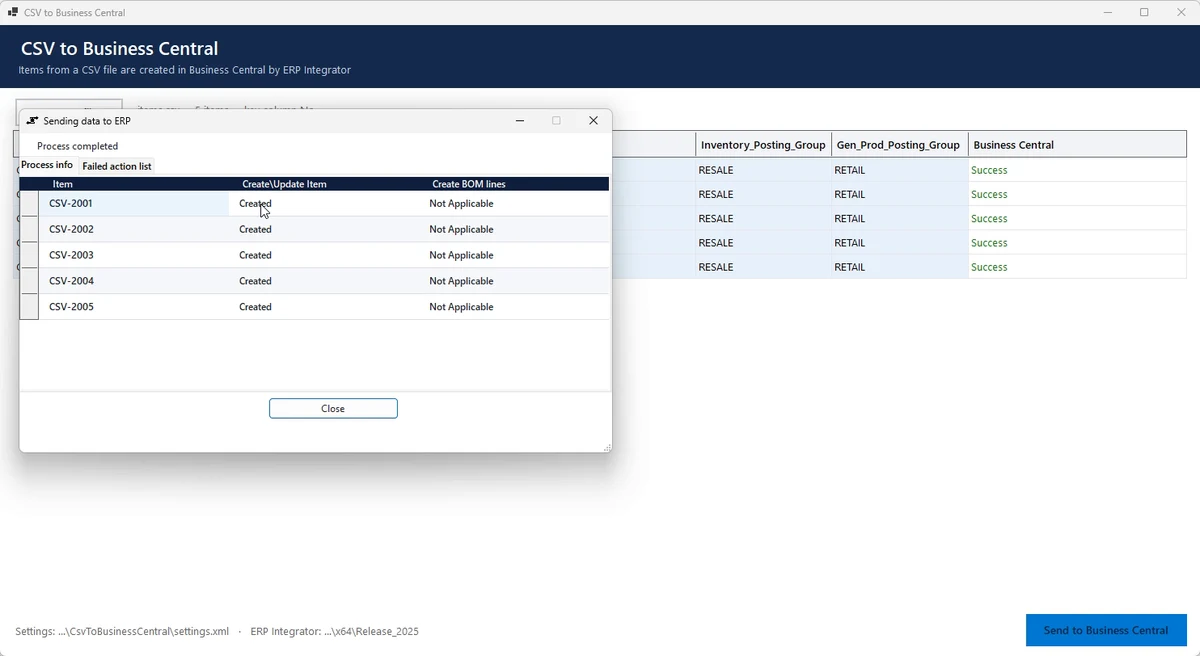
ERP Integrator status window over the demo application: the five items from the CSV file Created in Business Central, Success in the grid

Send

ERP Integrator creates or updates the items

Send to Business Central hands the rows to ERP Integrator. The engine connects with the settings' credentials, checks which items already exist, creates the new ones, updates the others and shows its progress in the same status window the CAD integrations use. In the demo all five items come back Created.

  • The result of every item comes back to the application, which shows it in its own grid.
  • Each run writes a log, so a rejected value is easy to trace.
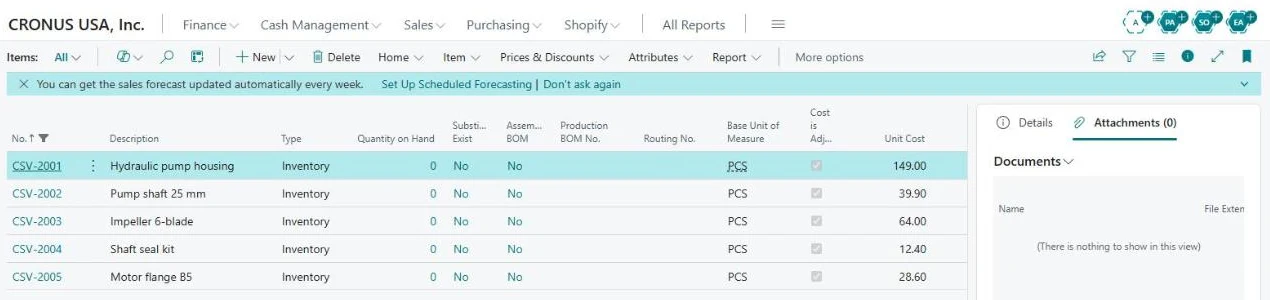
Business Central item list with CSV-2001 to CSV-2005, their descriptions, base unit of measure PCS and the unit cost from the second file

Send again

Changed data updates the same items

The items arrive in Business Central with the description, base unit of measure, unit cost, unit price and posting groups from the file. When the data changes, send it again: ERP Integrator finds the items that already exist and updates them instead of creating duplicates. In the demo a file with new prices comes back Updated for all five items, and the item list in Business Central shows the new unit cost.

// The engine for Business Central, with your settings
var engine = new ERPIntegrator.Class1("Business Central", "nav",
    WriteLog, null, UpdateStatus, null, dependencies,
    settings, GetProperty, logfile, SaveSettings,
    null, null, null, null, StoreKeys,
    Environment.UserName, null);
engine.SetProcInfoPtr(procinfo);

// Your data: one row per item, keyed by item number
items["CSV-1001"] = new() {
    ["No"] = "CSV-1001",
    ["Description"] = "Hydraulic pump housing",
    ["Base_Unit_of_Measure"] = "PCS" };

engine.SendtoERP(ref message, ref ok, ..., ref items,
    ..., ref keyColumn, null);

For developers

A few calls in your code

The demo application is a few hundred lines of C#, most of it the window; the part that talks to ERP Integrator is one class of about 150 lines. It creates the engine with the ERP and the settings, gives it the rows and calls the send on a worker thread. The engine calls back for a property of an item, for the result of each item and for the log.

  • The application references ERP Integrator and loads it from the folder the ERP Integrator installer puts it in.
  • The settings are the same XML the other integrations use, so the settings dialog, the field mapping and the macro work unchanged.
  • Ask us for the sample project when you start your own integration.
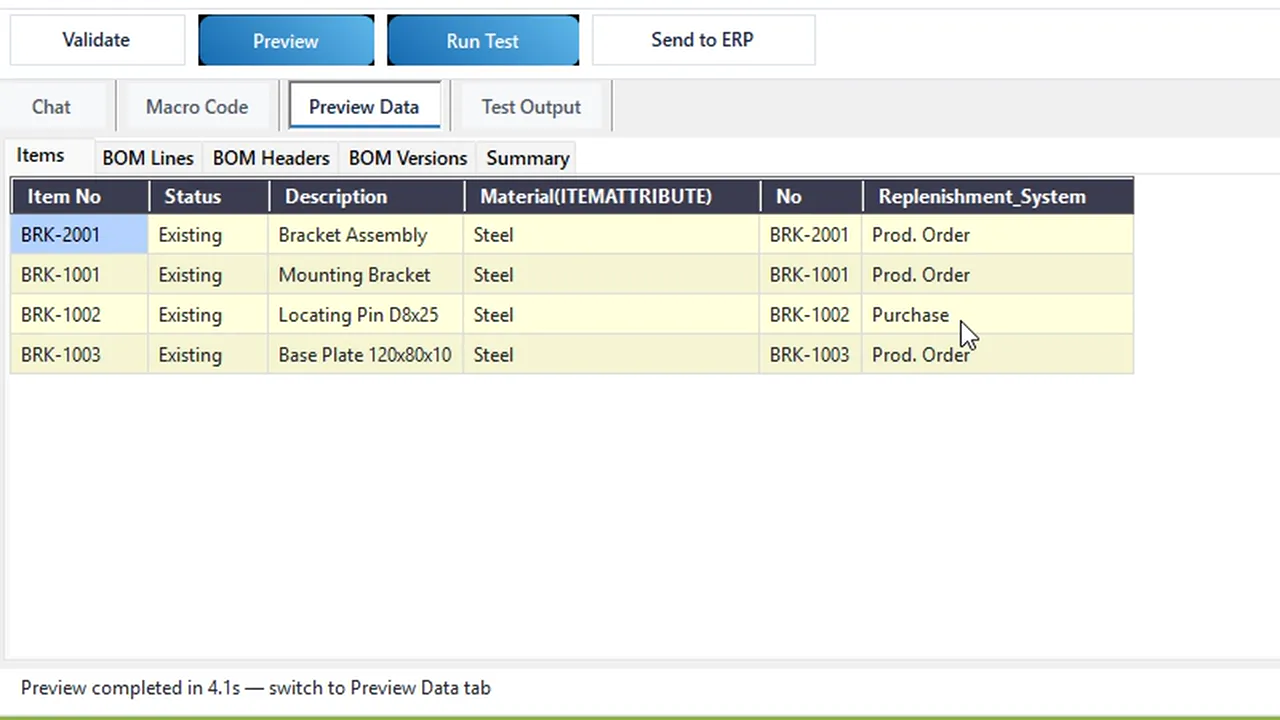
AI Macro Generator preview: Replenishment System set per item before anything is sent to Business Central

Rules and AI

Company rules in plain language, not in your code

The field mapping decides which property fills which Business Central field and holds fixed values. Rules that go further, such as a replenishment system that depends on the item category, live in a macro that ERP Integrator runs before every send. The AI Macro Generator writes that macro from a plain-language request, checks that it compiles and previews the result before anything is sent. The picture shows it in Autodesk Vault; the macro is the same for every application on the engine.

  • Your application keeps handing over its data unchanged; the rule changes in the settings.
  • The AI asks before it changes the field mapping. Saving and sending stay your decision.
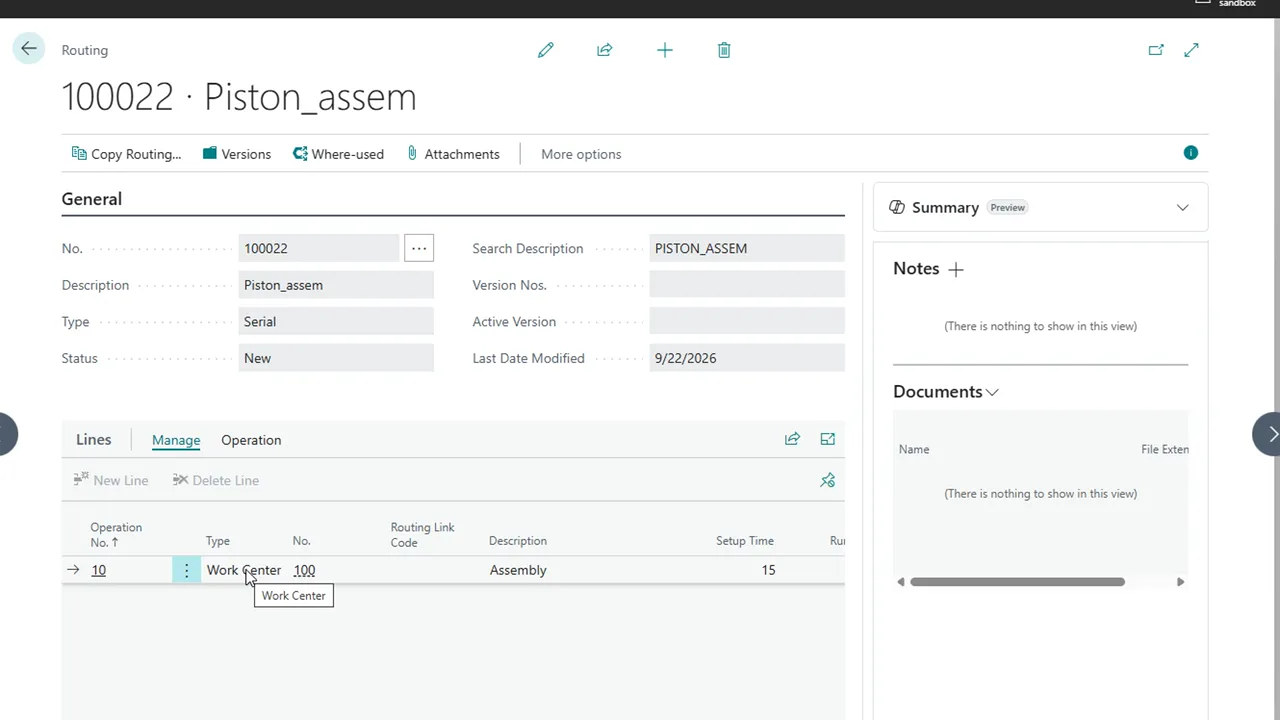
Business Central routing created by an ERP Integrator additional action, with operation 10 on work center 100

Additional actions

More than items: BOMs, units of measure, routings and files

The same send can create production BOMs with their version and lines when your application passes the lines of each parent item. Additional actions configured in the settings add item units of measure, item categories, routings, attachments and links along with the item.

  • Items, BOM header, version and lines are written in the order Business Central needs to certify the BOM.
  • Which actions run is configuration, not code in your application.
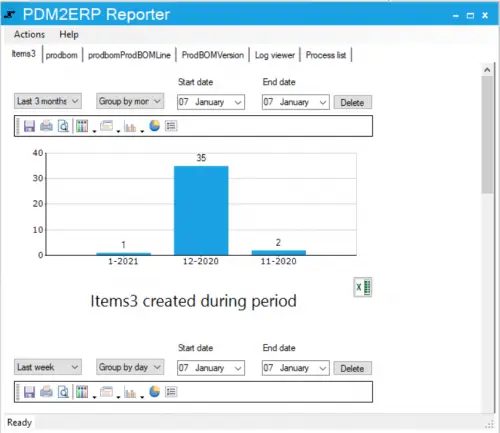
PDM2ERP Reporter with items created per month, production BOMs, the log viewer and the process list

Traceability

Every run recorded

The status window has a row per item and a Failed action list for anything Business Central rejected, with its message. Each run writes a log, and with the reporting server configured the PDM2ERP reporting tool counts what was created or updated, by whom and when.

Related integrations

The same engine, ready-made for your CAD and PDM systems

If your data lives in one of these systems, the integration already exists; ERP Integrator for SAP S/4HANA covers the same ground for SAP.

FAQ

Questions about ERP Integrator

What kind of application can use ERP Integrator?

Any 64-bit Windows application on .NET 8, written in C#, VB.NET or C++/CLI. It references the ERP Integrator assemblies, gives the engine its data as rows of property names and values, and calls the send. The CAD and PDM integrations on this site are built the same way: Autodesk Vault, SOLIDWORKS PDM, SOLIDWORKS, Autodesk Inventor, AutoCAD and Excel.

Who decides which value goes to which Business Central field?

The settings, not your code. The field mapping says which property of your data fills which Business Central field and holds fixed values; rules that go further are written in a macro, which the AI Macro Generator can write from a plain-language request. The application only hands over its data, so a new field is a settings change, not a new release of your program.

Does it work with other ERPs than Business Central?

Yes. The same engine and the same calls send to Dynamics 365 Finance and Operations, SAP S/4HANA, SAP Business One and Odoo; the ERP is named when the engine is created. See also ERP Integrator for SAP S/4HANA Cloud and ERP Integrator for SAP Business One.

Can our application send bills of materials too?

Yes. Besides the items, the application can pass the BOM lines of each parent item, and ERP Integrator creates the production BOM header, its version and the lines in the order Business Central needs, as it does for our CAD and PDM integrations. Additional actions add units of measure, routings, attachments and links.

How is ERP Integrator installed next to our application?

The ERP Integrator installer puts the engine in its own folder under Program Files and records that folder in the registry. Your application loads the engine from there, so it does not carry its own copy and picks up ERP Integrator updates without being rebuilt. The engine uses the ERP Integrator licence from your licence server.

Connect your application to Business Central

Tell us what your application holds and which Business Central records it should create. We will show ERP Integrator sending your own data and help you set up the first integration. Or write to us with your Business Central version and the fields you fill by hand today.

Cookies Notice

We use cookies to improve your browsing experience and to understand how our website is used. Cookies help us deliver better performance, personalize content, and analyze traffic. By continuing to use PLM CAD Utilities, you agree to our use of cookies.