ERP Integrator for desktop applications · SOLIDWORKS PDM add-in

SOLIDWORKS PDM to Odoo Integration

Right-click a released assembly in the vault and ERP Integrator creates it in Odoo: the products, the bills of materials for the assembly and its sub-assemblies, and every line, from the data cards and with a link back to the vault. The ERP Data tab then shows where the vault and Odoo differ.

SOLIDWORKS PDM and Odoo

What engineering released is what Odoo manufactures

Engineers design in SOLIDWORKS and release in PDM, and every design in the vault has to become products and a bill of materials in Odoo. Typed in by hand, that is slow and easy to get wrong.

ERP Integrator for desktop applications connects the two inside the vault. It reads the data cards and the bill of materials from PDM, a field mapping decides which variable fills which Odoo field, and an optional macro holds the rules that go further.

  • All levels by right-click

    Products, bills of materials and lines for every assembly level.

  • Back to the vault

    The product in Odoo carries a link that opens the file in SOLIDWORKS PDM.

  • Additional actions

    Create a routing operation on the bill of materials from the vault.

  • BOM as of a date

    Compare the vault's structure on a date with Odoo.

Video

SOLIDWORKS PDM to Odoo: send, link, route, check and add a rule

The engine assembly is sent all levels from the vault, its bill of materials is opened in Odoo with the link back to PDM, a routing operation is created, a changed description is caught on the ERP Data tab and the assistant previews a Can be Purchased rule.

How it works

From the vault to Odoo

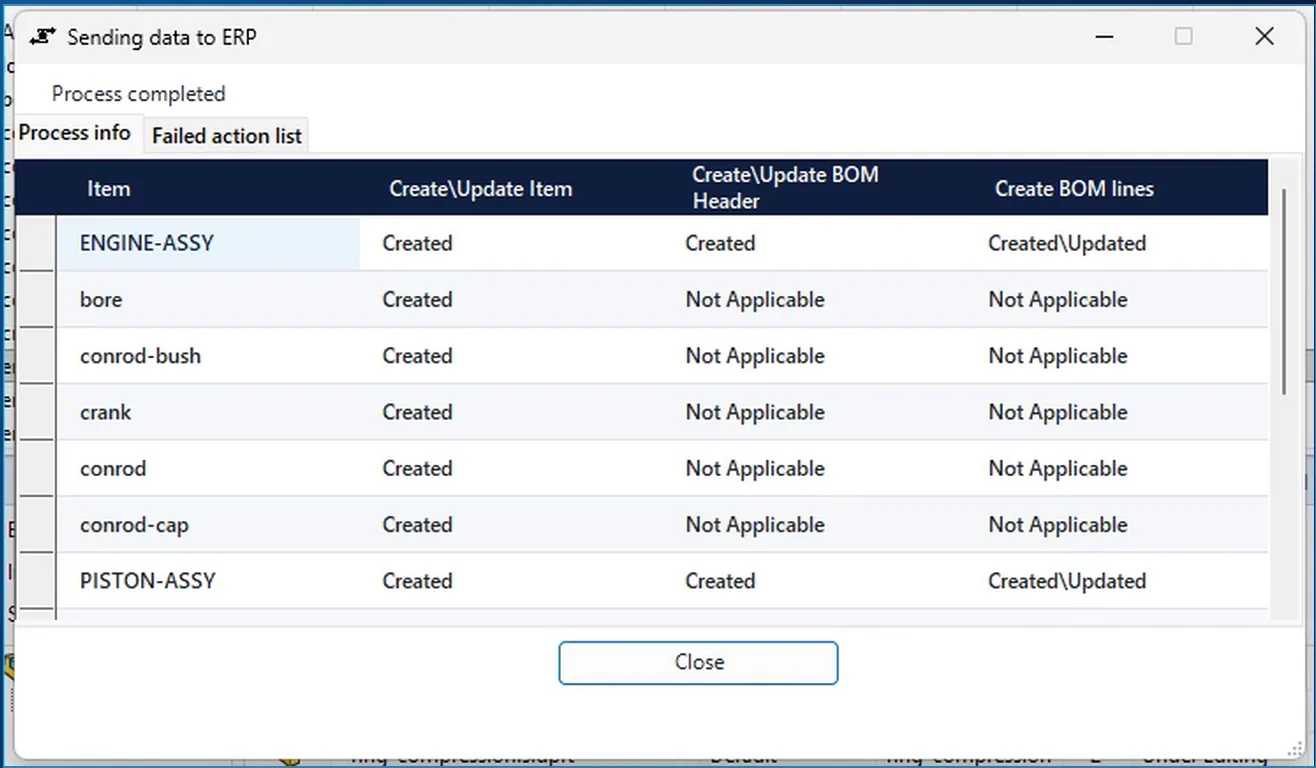
ERP Integrator send dialog: ENGINE-ASSY and its components Created in Odoo, BOM headers Created, BOM lines Created\Updated

Send

Send to Odoo, all levels

Select the assembly in the vault, right-click and choose ERP Integrator > Send to Odoo all levels. It reads the data cards and the complete bill of materials from PDM, applies your rules and creates everything in Odoo: the products, the bills of materials for the assembly and its sub-assembly, and every line.

  • In the demo the file names serve as item numbers; any data card variable can be the key.
  • One row per file, with columns for the product, the BOM header and the BOM lines.
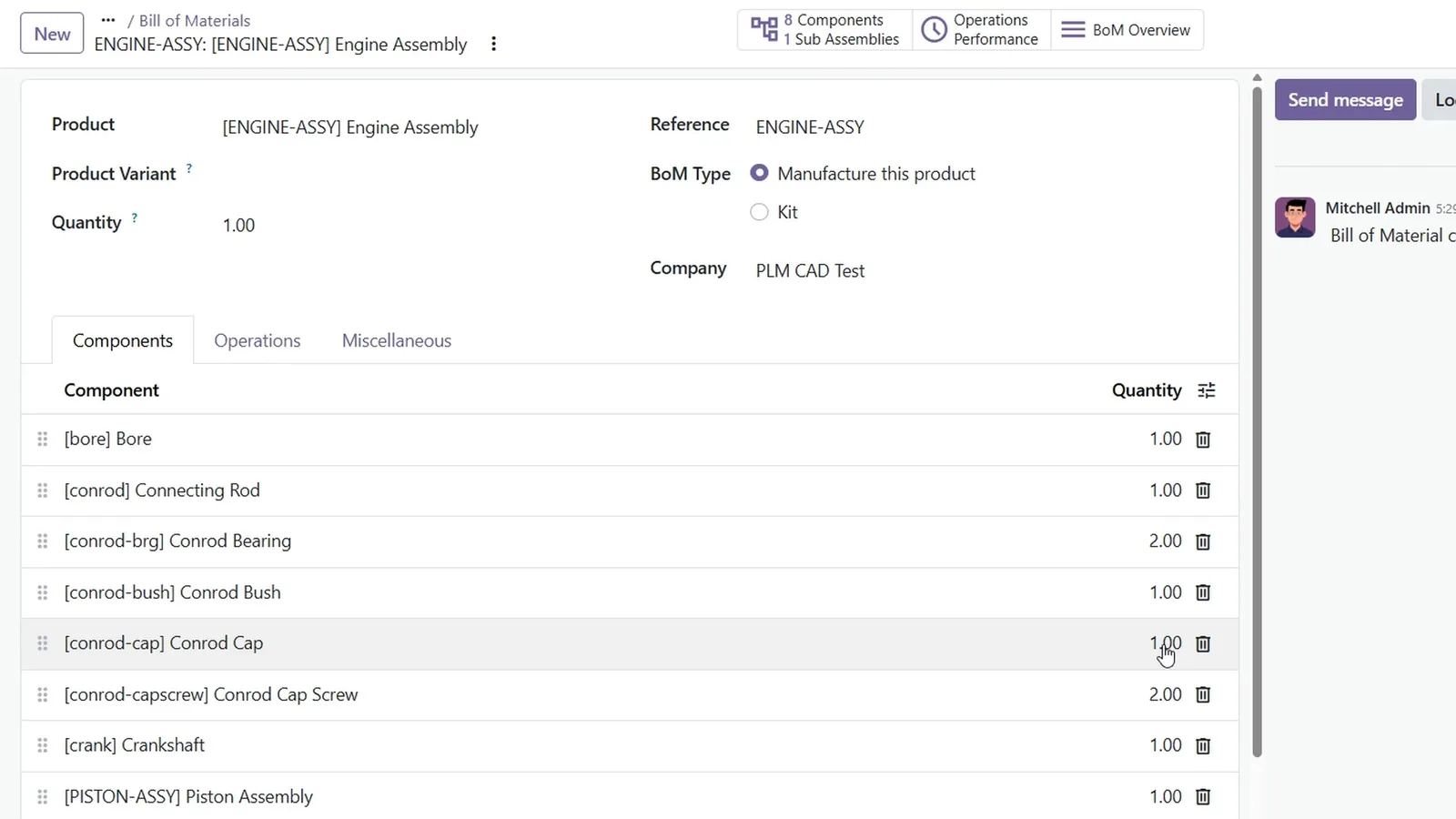
Odoo bill of materials for ENGINE-ASSY with the file names as internal references and each component with its quantity

Result in Odoo

The bill of materials in Odoo

In Odoo the bill of materials of the engine assembly is there, with the file names as item numbers and every component with its quantity: the same structure as in the vault.

  • The product also carries a link back to the vault: Open in SOLIDWORKS PDM, right in its files.
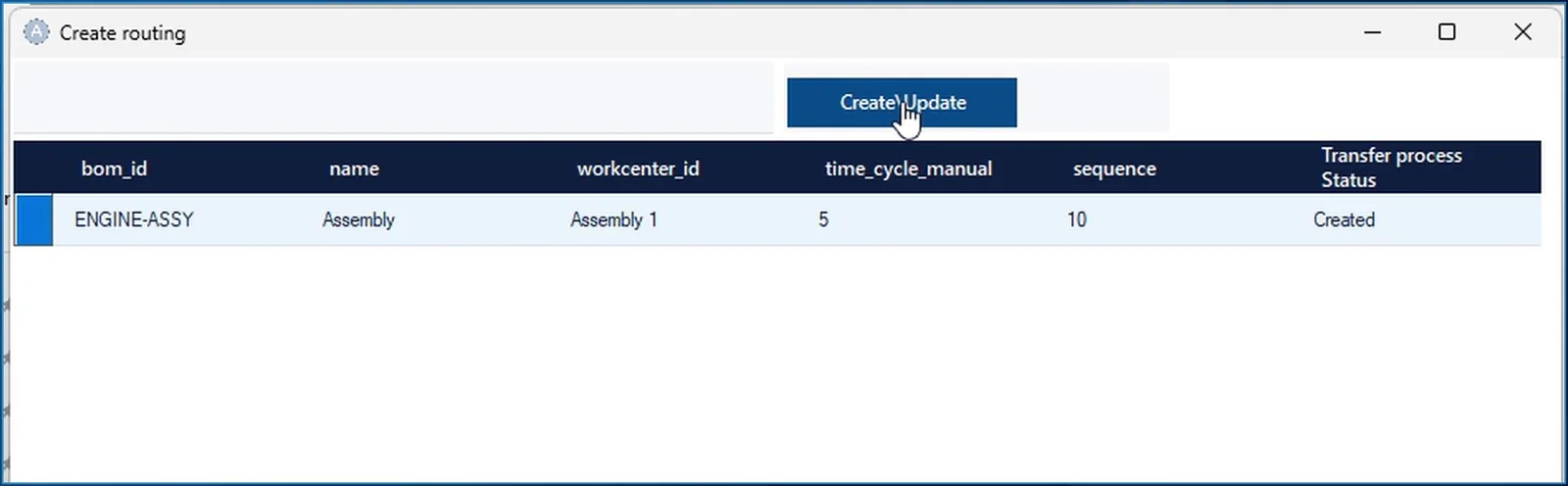
Create routing dialog from SOLIDWORKS PDM: operation Assembly for ENGINE-ASSY on work center Assembly 1, time 5, status Created

Additional actions

Add what your process needs: a routing

Additional actions add whatever else your process needs. Right-click the assembly and choose ERP Integrator > Create routing: it shows the operation with its work center and time, and creates it in Odoo. On the bill of materials it appears as operation Assembly, on work center Assembly 1, five minutes.

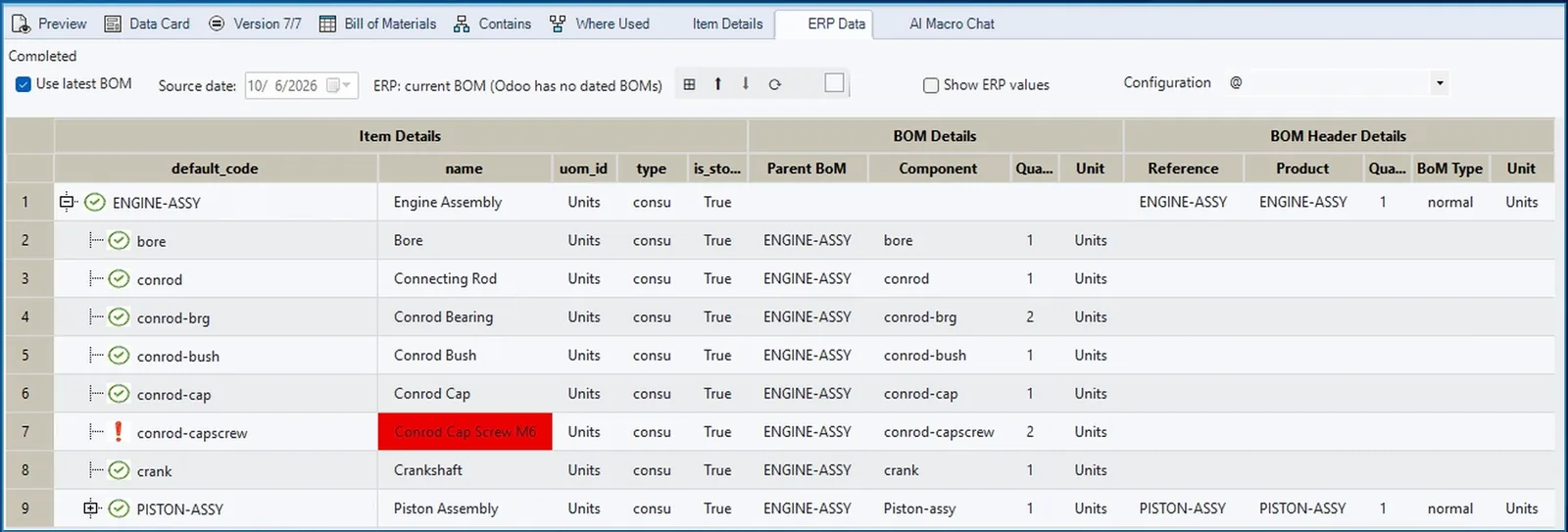
ERP Data tab in SOLIDWORKS PDM comparing the vault and Odoo, the changed description of the cap screw marked red

Check in the vault

Live Odoo data inside PDM

The Item Details tab shows the product live from Odoo, and the ERP Data tab puts PDM and Odoo side by side. In the demo the cap screw's description has since changed on its data card, so the difference stands out in red, and the tooltip shows both values.

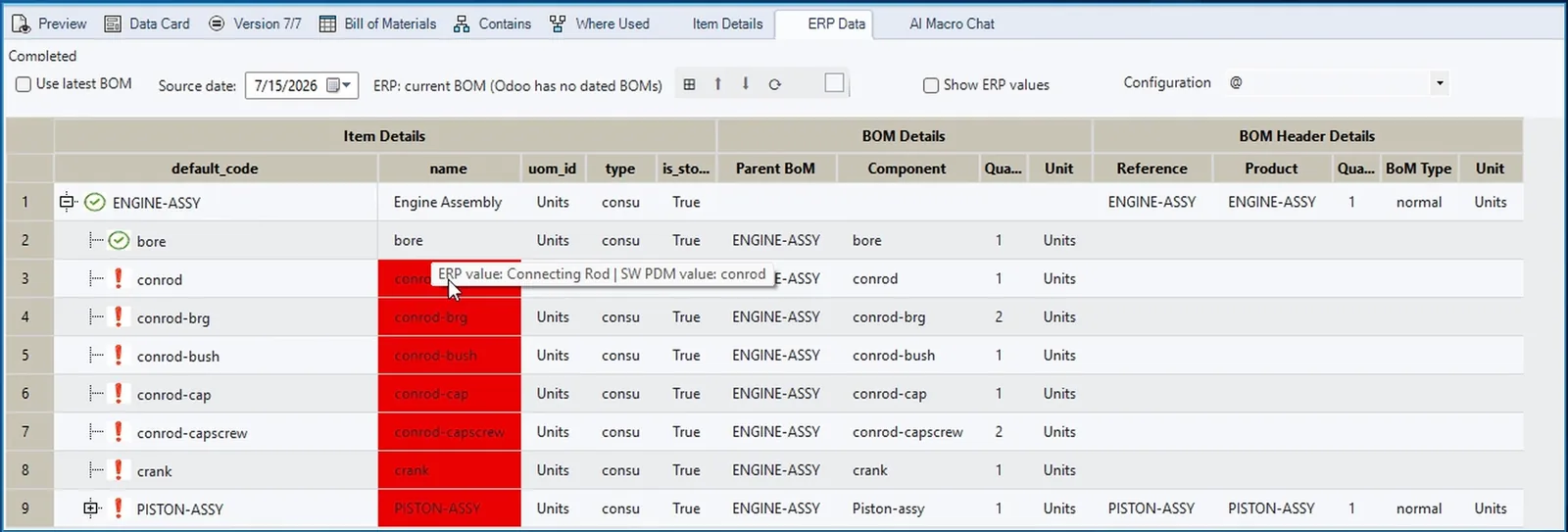
ERP Data tab with source date 15 July 2026 and the note that Odoo has no dated BOMs: the component names red

As of a date

Compare the bill of materials as of a date

Odoo keeps one current bill of materials, so the vault's structure on the date you pick is compared with today's rows in Odoo; the tab says so next to the date. On 15 July the data cards had no descriptions yet, so every component name stands out in red. Back on the latest version, only the cap screw differs.

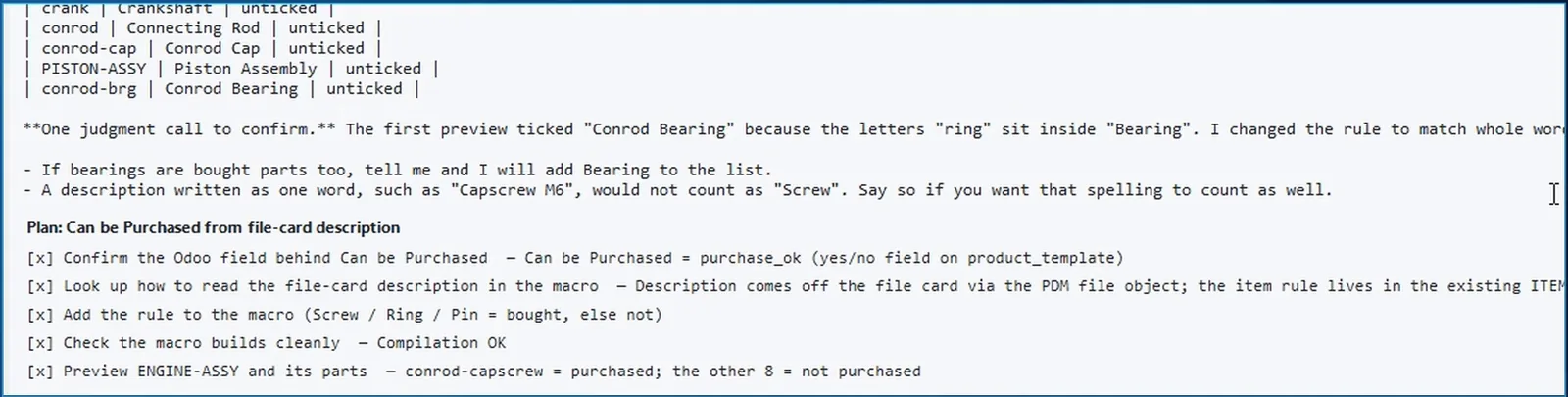
AI Macro Chat in SOLIDWORKS PDM: the Can be Purchased rule, the preview ticks only the cap screw

Rules and AI

Your company rules in plain words

Describe a rule in plain words: parts with screw, ring or pin in the data card description are bought, so tick Can be Purchased for them and untick it for everything else. The AI looks up the field in Odoo and how to read the data card, asks for your approval before each change to the macro, writes the rule, checks that it compiles and previews the result: only the cap screw can be purchased. Nothing has been sent yet.

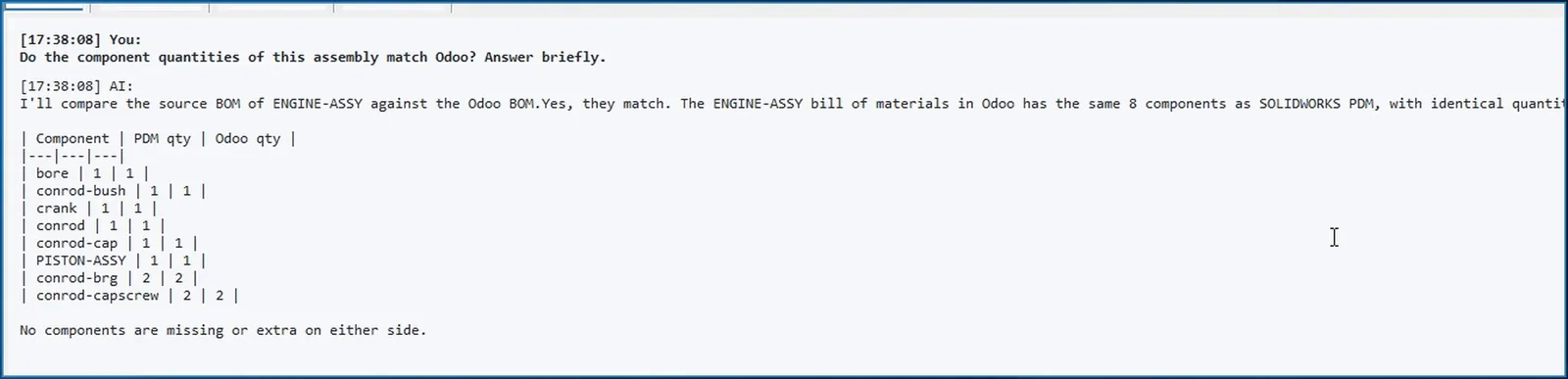
AI chat in SOLIDWORKS PDM: the ENGINE-ASSY bill of materials in Odoo has the same eight components as PDM, with identical quantities

Questions

Ask about the assembly

Asked whether the component quantities of the assembly match Odoo, the assistant reads the bill of materials in the vault and the live rows in Odoo and answers: all eight components match, quantity for quantity.

AI chat in SOLIDWORKS PDM: conrod.sldprt is used by engine_assy2.sldasm, which exists in Odoo as product Engine Assembly

Where-used search

Which files use this part, and are they in Odoo?

Ask which files in the vault use the connecting rod and which of them exist in Odoo: the assistant runs a where-used search in PDM, looks the result up in Odoo and answers in one table: the engine assembly, and it is there.

The assistant works with your own key for Claude, OpenAI, Azure OpenAI or a compatible model, with a ChatGPT sign-in, with a coding agent such as Claude or Gemini, or with your own assistant through the MCP connector. Whatever it proposes, nothing is changed until you approve it.

Related integrations

Odoo from other applications, SOLIDWORKS PDM with other ERPs

ERP Integrator for desktop applications is installed for one ERP: Business Central, Dynamics 365 Finance and Operations, SAP S/4HANA, SAP Business One or Odoo.

FAQ

Questions about SOLIDWORKS PDM and Odoo

What does the integration create in Odoo from a PDM assembly?

Send to Odoo all levels creates or updates a product for the assembly and every file in its bill of materials, and a bill of materials with its components for the assembly and each sub-assembly. Each product gets a link that opens the file in SOLIDWORKS PDM.

Can it create routings in Odoo?

Yes, as an additional action on the right-click menu. Create routing shows the operation, work center and time for the assembly and writes it as an operation on the bill of materials in Odoo.

Can I compare a bill of materials as of a date with Odoo?

Yes, from the source side. Odoo keeps one current bill of materials, without validity dates, so the ERP Data tab compares the structure as it was on the date you pick with today's bill of materials in Odoo, and says so on screen. ERPs with dated BOMs, such as Business Central, compare both sides on that date.

Which AI models can the assistant use?

Your own key for Claude, OpenAI, Azure OpenAI or a compatible model, a ChatGPT sign-in, a coding agent such as Claude or Gemini, or your own assistant through the MCP connector. The assistant can read both systems, but the field mapping, the macro and the ERP data change only after you approve.

Does the same add-in work with other ERPs and applications?

Yes. ERP Integrator for desktop applications connects SOLIDWORKS PDM to Business Central, Dynamics 365 Finance and Operations, SAP S/4HANA, SAP Business One and Odoo, chosen when you install it, and also runs in SOLIDWORKS, Autodesk Vault, Autodesk Inventor and Excel.

Bring a vault assembly and your Odoo product fields

In a demo we send it from your data cards to Odoo, check it in the vault and show how your own rules would be written. Questions first? Use the contact page.

Cookies Notice

We use cookies to improve your browsing experience and to understand how our website is used. Cookies help us deliver better performance, personalize content, and analyze traffic. By continuing to use PLM CAD Utilities, you agree to our use of cookies.