INV2ERP · Autodesk Inventor add-in

Autodesk Inventor to Dynamics 365 Finance & Operations Integration

INV2ERP creates and releases the products of an Inventor assembly in Dynamics 365, builds the BOM version and its lines, and shows inside Inventor which line no longer matches.

Inventor and Dynamics 365

Released products straight from the model

In Dynamics 365 Finance and Supply Chain Management a design only becomes usable once its parts are released products and the assembly has a BOM version with lines. Keying that in from an Inventor assembly means creating each product, releasing it to the legal entity and then building the bill of materials, again at every change.

INV2ERP by PLM CAD Utilities AS does those steps from the Inventor ribbon. It takes names and descriptions from the iProperties, fixed values such as the dimension groups from the settings, and anything company-specific from a macro.

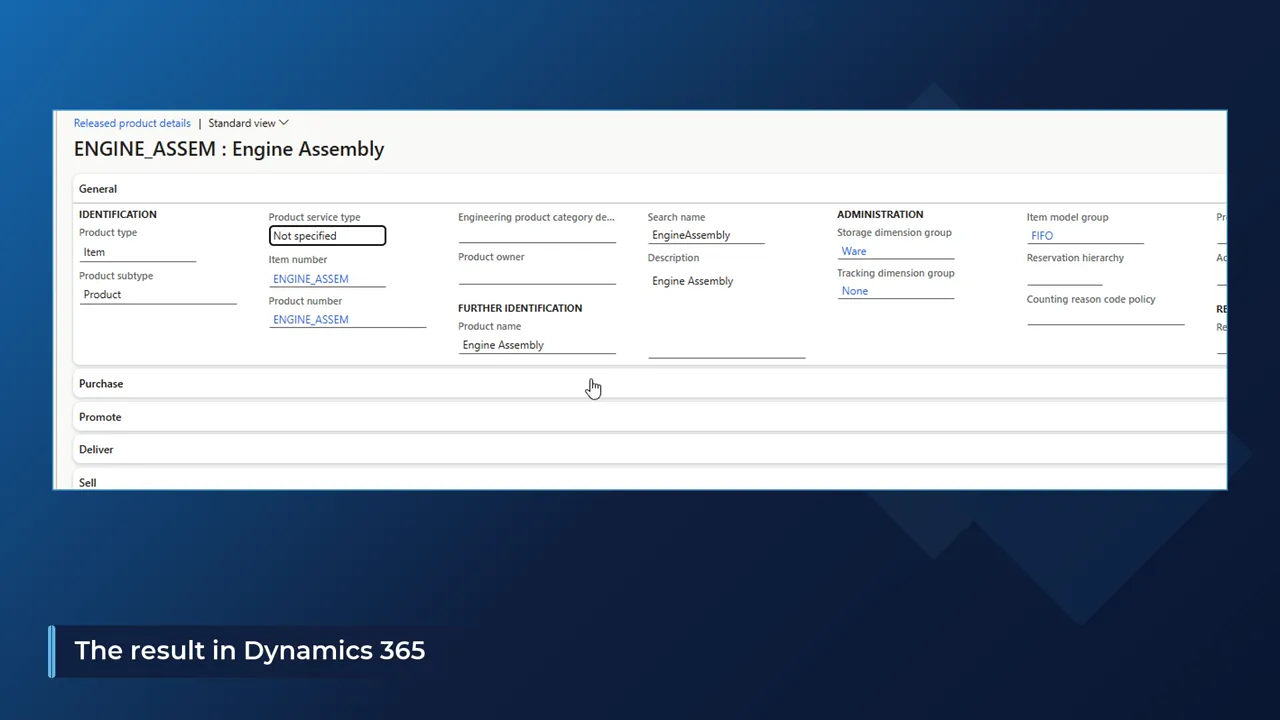
Dynamics 365 released product details for ENGINE_ASSEM created from Autodesk Inventor, with storage dimension group Ware and item model group FIFO
  • Create and release

    Products are created and released to the legal entity in one run.

  • Multi-level BOMs

    BOM header, version A and lines for the assembly and each sub-assembly.

  • Red where it differs

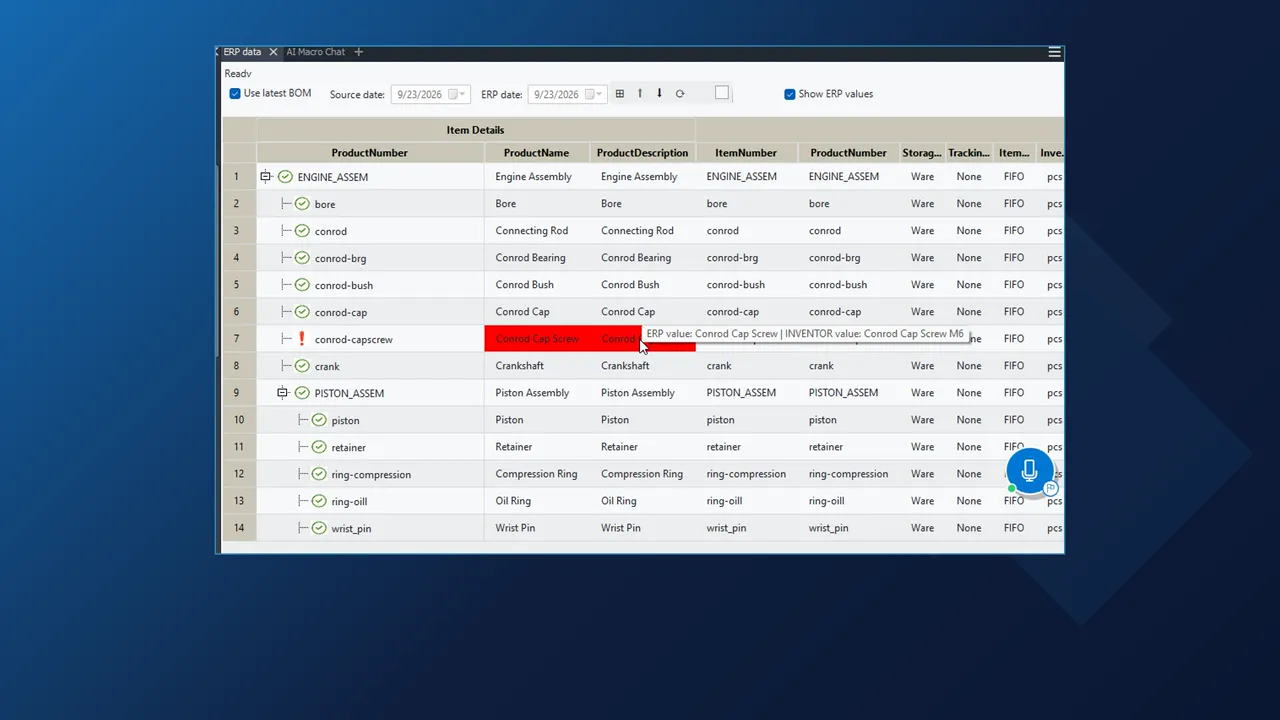
    The ERP data pane marks the cell that changed in Inventor since the send.

  • Approval first

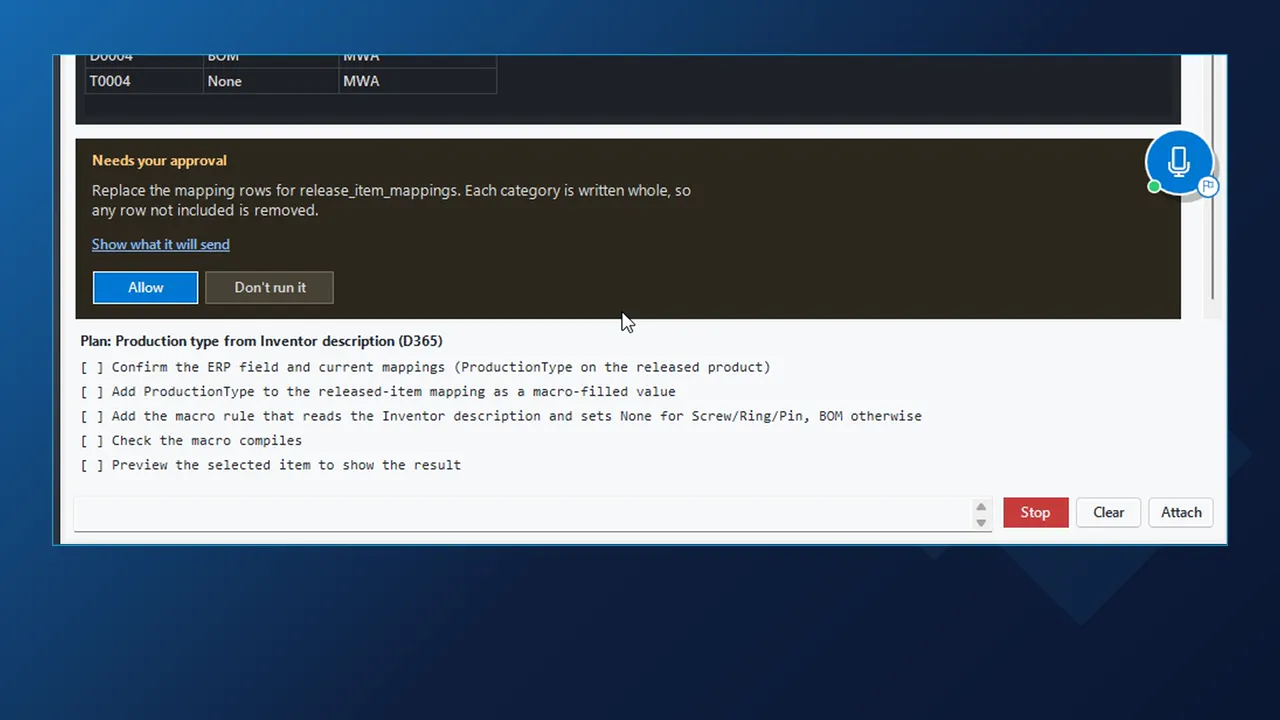
    The AI shows the mapping change and waits for Allow.

Video

An Inventor assembly released to Dynamics 365

Watch the send from the Inventor ribbon, the released product and BOM version in Dynamics 365, a changed cap screw description caught in Inventor, and a production type rule built with the AI.

How it works

What INV2ERP does between Inventor and Dynamics 365

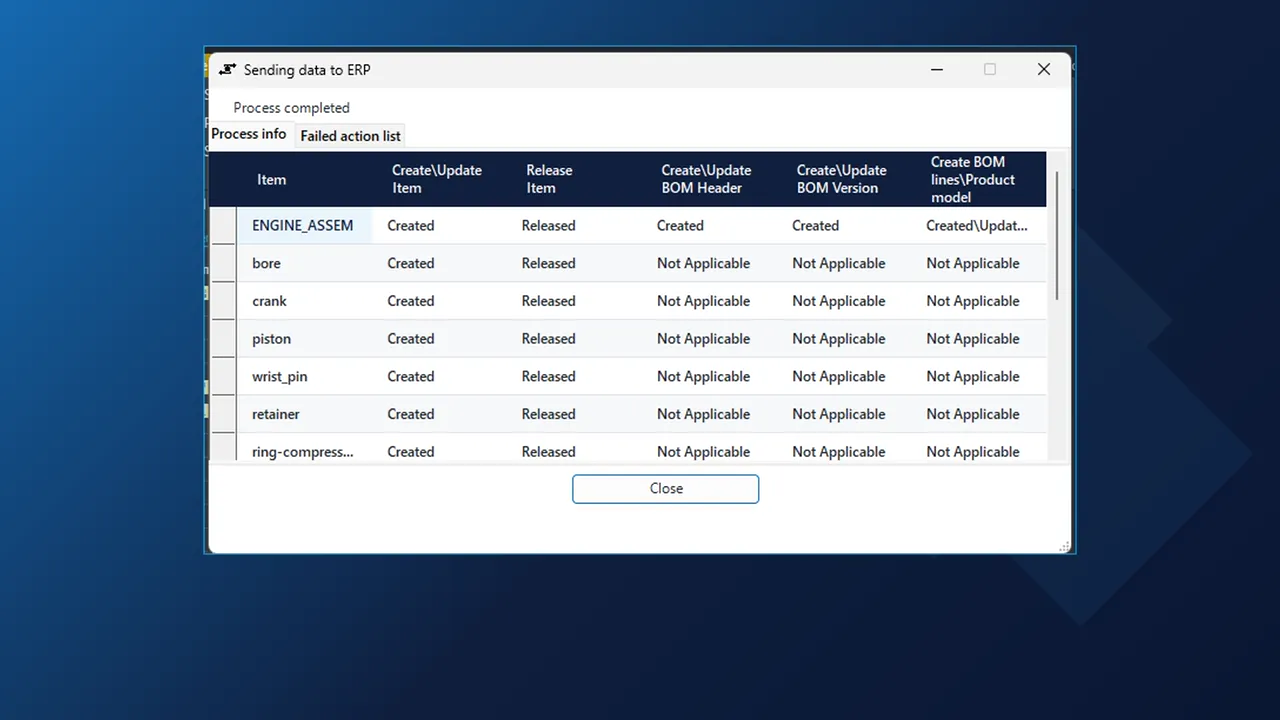
INV2ERP result dialog after sending an Inventor assembly to Dynamics 365, each product Created and Released with its BOM header and version

Send

Released products from one send

With the assembly open, send it to Dynamics 365 from the Inventor ribbon, all levels. INV2ERP collects the iProperties of the assembly and every component below it, runs the company rules, creates the products, releases them to the legal entity, and builds the BOM header, the BOM version and the BOM lines.

  • The result dialog has a column for each step: create or update the item, release it, BOM header, BOM version and BOM lines.
  • When the dialog reports Process completed, every row reads Created and Released, or Not Applicable where a part has no BOM of its own.
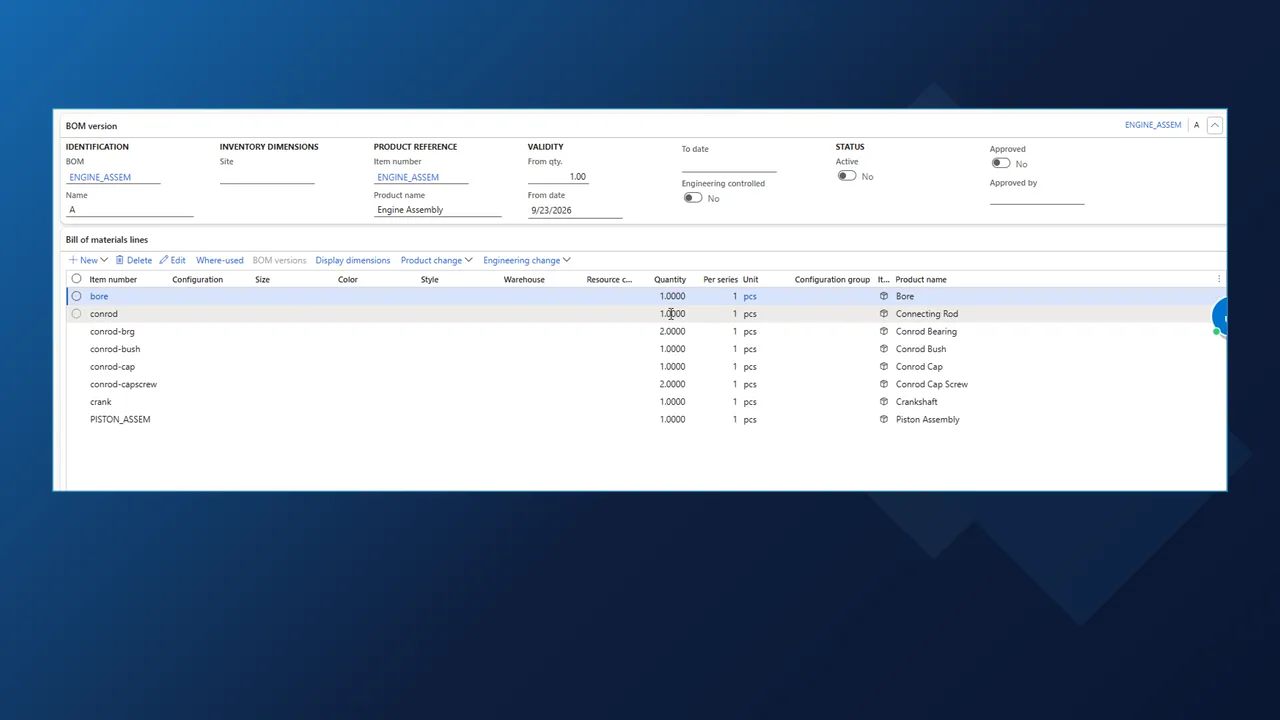
Dynamics 365 BOM version A for ENGINE_ASSEM with the bill of materials lines sent from Inventor

Result in Dynamics 365

BOM version A, valid from the send date

The BOM version for the assembly is created as version A with a from date of the send date. Its lines carry each component's item number, quantity and unit, in the order and structure of the Inventor assembly, with the piston sub-assembly as its own line and its own BOM.

  • Released product details show the name and description from Inventor, with the storage dimension group, tracking dimension group and item model group filled from the mapping.
  • Those fixed values are set once in the settings, not per send.
INV2ERP ERP data pane in Inventor with the cap screw description marked red because it differs from Dynamics 365

Check in Inventor

Differences show up in red

Two panes keep you in Inventor. Show ERP Item Details reads the released product live: item number, product number, dimension groups, item model group and the unit symbols. The ERP data pane compares the whole assembly with Dynamics 365 line by line.

  • In the demo the cap screw's description had been changed in Inventor after the send. Its cell turns red, and the tooltip shows both values: Conrod Cap Screw in Dynamics 365, Conrod Cap Screw M6 in Inventor.
  • Lines that agree get a green check, so the one that needs a new send is easy to find.
AI Macro Chat in Inventor showing a plan for the production type rule and a Needs your approval card with Allow and Don't run it

Rules and AI

A production type rule, with your approval

Rules go into a macro, and the AI Macro Chat can write it for you. The request here: parts with screw, ring or pin in the description are bought, so they get no production type; everything else is made from a BOM. The AI checks the field on the released product, writes a short plan, and stops at Needs your approval before it changes the release-item mapping.

  • Show what it will send lists the exact mapping change before you choose Allow or Don't run it.
  • After approval it adds the rule to the macro and compiles it.
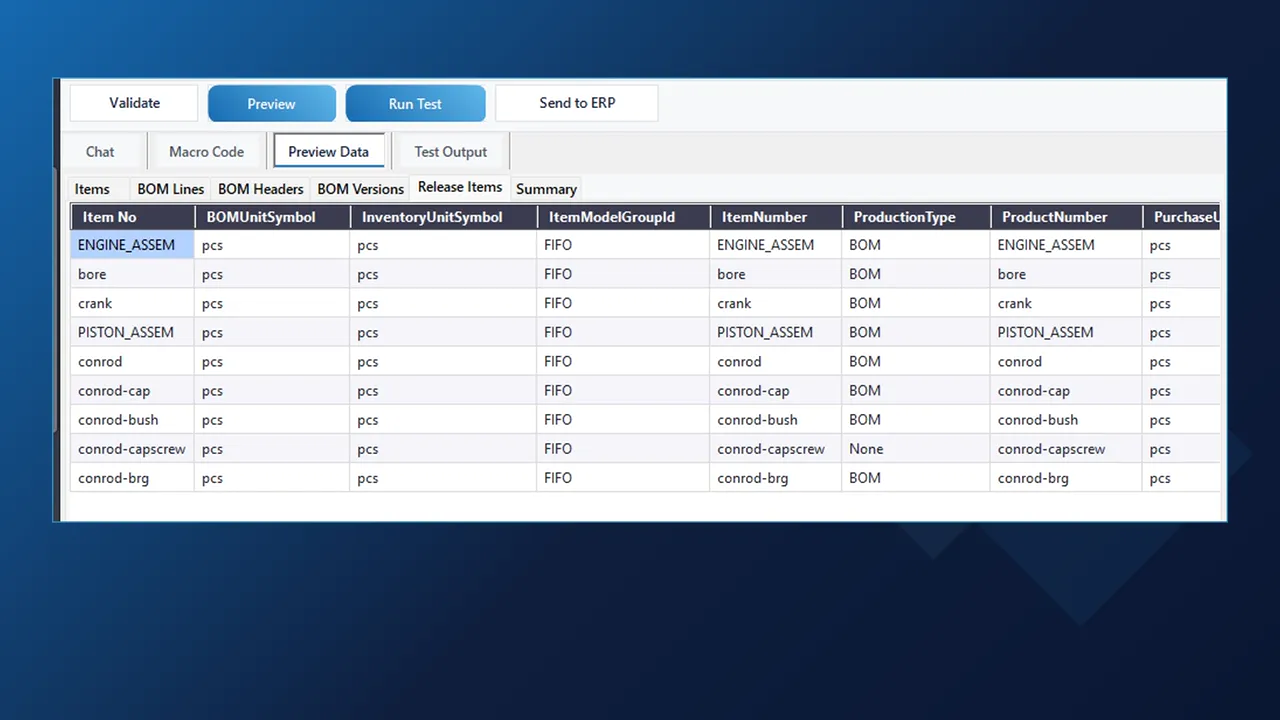
Release Items preview in the AI Macro Chat: production type None for the cap screw and BOM for the other released products

Preview

Release Items previewed on the assembly

The Release Items tab of the preview shows what the next send would write: the cap screw with production type None, every other part and both assemblies with BOM.

Nothing has gone to Dynamics 365 yet. The rule takes effect when you save it and send the assembly again.

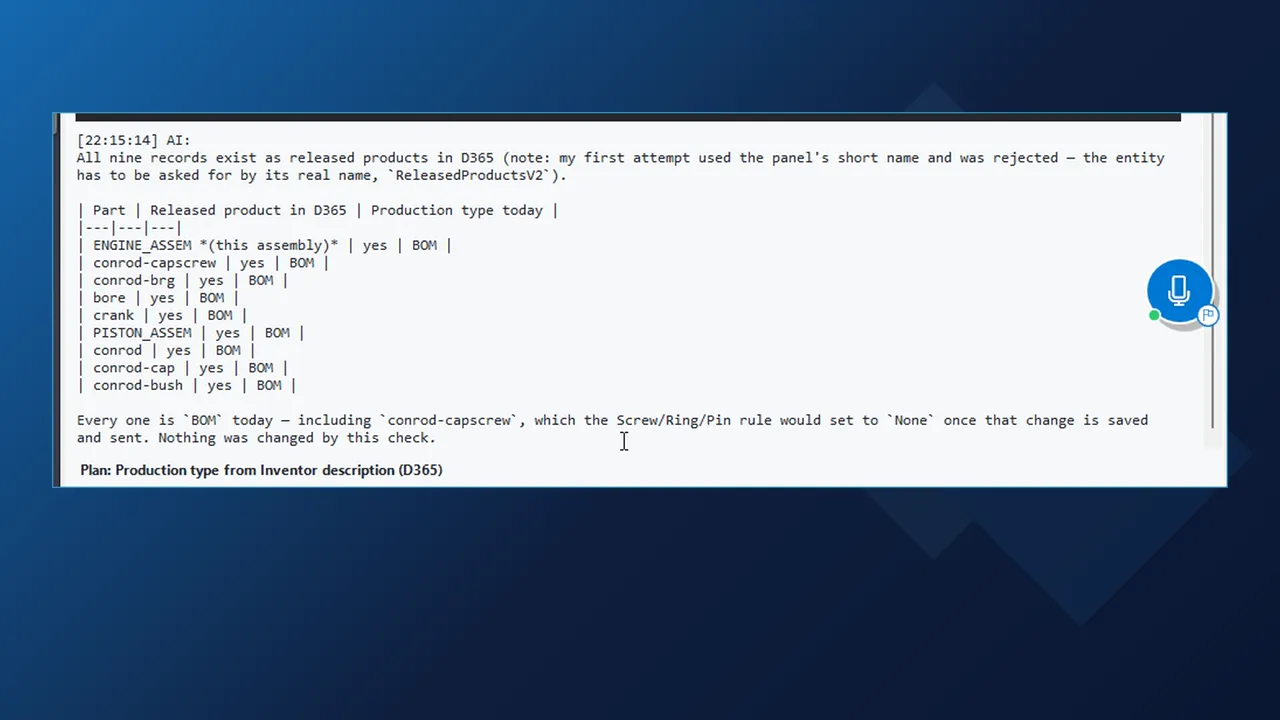
AI Macro Chat answer listing the nine Inventor parts found as released products in Dynamics 365 and their current production type

Questions and search

Ask Dynamics 365 instead of searching it

Asked whether the component quantities match Dynamics 365, the assistant compared the Inventor BOM with the BOM lines and answered that all eight match. Asked which parts already exist and what production type they have today, it queried the released products and answered in one table: all nine exist, all still BOM, until the new rule is saved and sent.

  • Questions only read. The answer ends with: nothing was changed by this check.
  • The assistant runs on the AI you choose: your own key for Claude, OpenAI, Azure OpenAI or a compatible model, a ChatGPT sign-in, a coding agent such as Claude or Gemini, or your own assistant through the MCP connector.

Related integrations

Other ERPs for Inventor, other sources for Dynamics 365

The ERP is picked in the installer; the Inventor workflow stays the same.

FAQ

Questions about INV2ERP for Dynamics 365

Which Dynamics 365 records does INV2ERP write?

For every item in the assembly it creates or updates the product and releases it to the legal entity. For each assembly and sub-assembly it writes the BOM header, a BOM version valid from the send date, and the BOM lines with item number, quantity and unit.

Where do the storage dimension group and item model group come from?

From the field mapping. Values that are the same for every product, such as the storage dimension group, tracking dimension group and item model group, are set once in the settings and written on every send. Values that differ per part come from the Inventor iProperties.

How do I find a part that changed in Inventor after the last send?

Open the ERP data pane. It compares the whole assembly with Dynamics 365 line by line and turns the changed cell red; the tooltip shows both values, for example Conrod Cap Screw in Dynamics 365 and Conrod Cap Screw M6 in Inventor. Show ERP Item Details reads the released product itself.

Can the production type depend on the part?

Yes. Rules like that go into a macro, and the AI Macro Chat can write it. In the demo, parts with screw, ring or pin in the description get production type None and everything else BOM. The AI shows the exact mapping change and waits for Allow before it writes anything, then previews the Release Items on the assembly.

Does asking the assistant a question change data in Dynamics 365?

No. Questions only read: the assistant queries the released products and BOM lines and answers in a table, and the answer states that nothing was changed by the check. Changes to the mapping, the macro or Dynamics 365 always need your approval.

Which AI models and ERPs are supported?

Your own key for Claude, OpenAI, Azure OpenAI or a compatible model, a ChatGPT sign-in, a coding agent such as Claude or Gemini, or your own assistant through the MCP connector. INV2ERP is installed for one ERP: Dynamics 365 Finance and Operations, Business Central, SAP S/4HANA or SAP Business One.

See your Inventor assembly as released products in Dynamics 365

Tell us your legal entity, the product fields you release today and the rules behind them. In the demo we send one of your assemblies and walk through the check in Inventor. You can also reach us through the contact page.

Cookies Notice

We use cookies to improve your browsing experience and to understand how our website is used. Cookies help us deliver better performance, personalize content, and analyze traffic. By continuing to use PLM CAD Utilities, you agree to our use of cookies.