INV2BC · Autodesk Inventor add-in

Autodesk Inventor to Dynamics 365 Business Central Integration

One click on the Inventor ribbon turns the open assembly into items, production BOMs and certified BOM versions in Business Central, and the ERP data pane tells you line by line whether both sides still match.

Inventor and Business Central

The iProperties you already fill in, written to the ERP

A design that goes to production has to exist in Microsoft Dynamics 365 Business Central as items and a production BOM. Retyping part numbers, descriptions and quantities from the Inventor model costs time on every revision, and a typo in a quantity travels straight into purchasing.

INV2BC works inside Autodesk Inventor. Which iProperty fills which Business Central field is set once in the field mapping, fixed values such as the material come from the same settings, and rules that differ per company go into a macro that you or the AI assistant write.

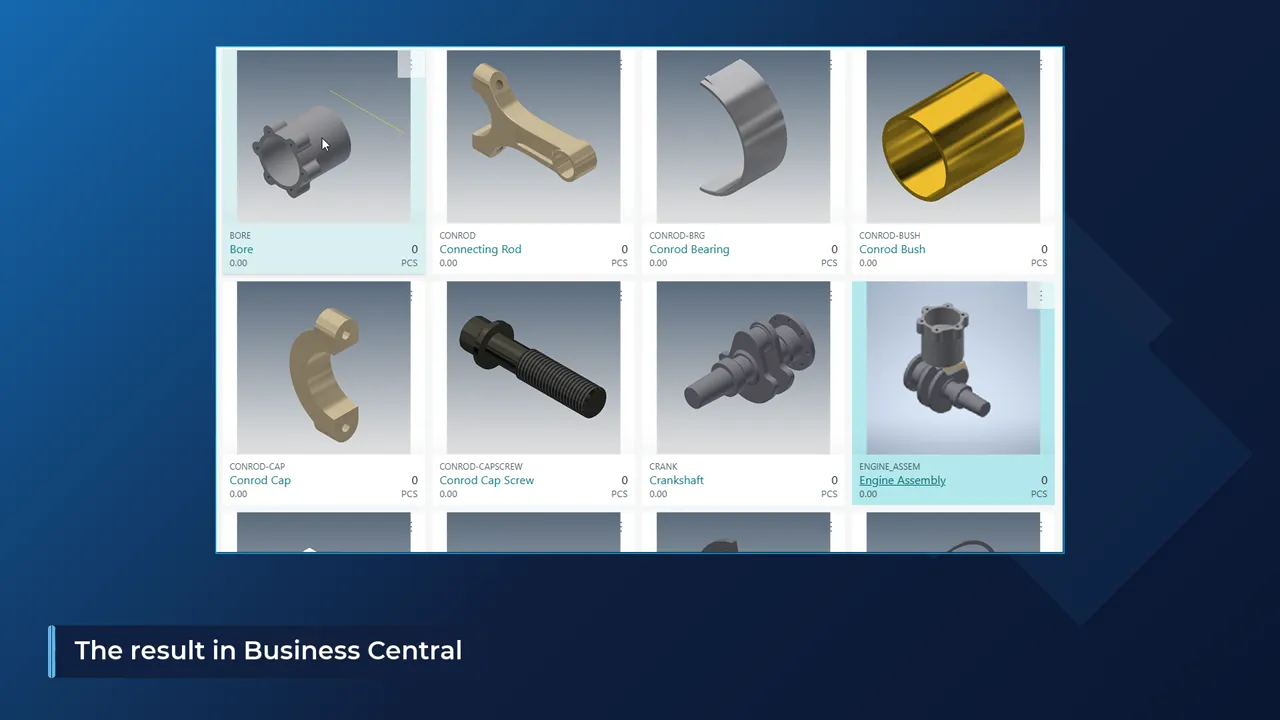
Business Central item tiles for the bore, connecting rod, conrod bearing and engine assembly, each showing the Inventor thumbnail as its picture
  • The whole assembly tree

    Every sub-assembly gets its own production BOM in the same send.

  • More than items and BOMs

    Routings, item categories and units of measure as additional actions.

  • Compared while you model

    Inventor and Business Central values side by side, on any date.

  • Rules from a sentence

    The AI Macro Chat asks when a rule is unclear and waits for your approval.

Video

INV2BC with an engine assembly, from ribbon to routing

The recording sends the engine assembly to Business Central, opens the certified BOM version, creates a routing, checks the BOM from Inventor and adds a purchase-or-make rule through the AI chat.

How it works

From the open Inventor assembly to Business Central

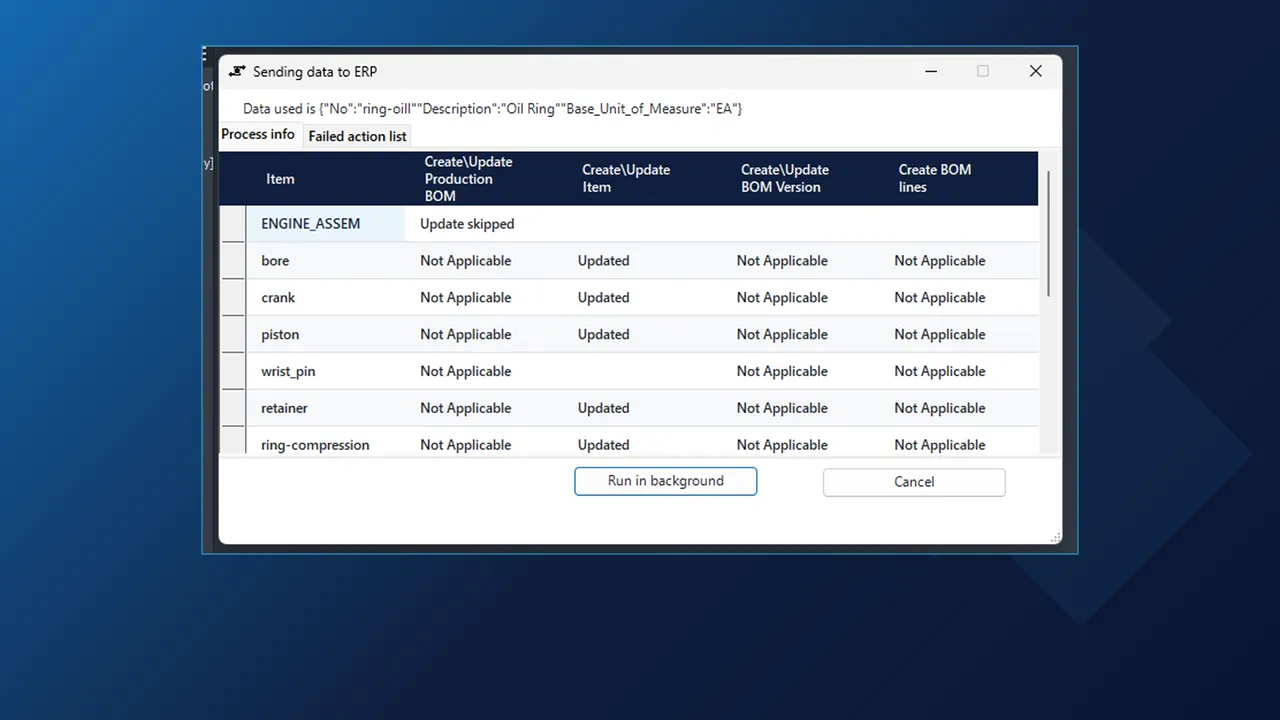
INV2BC Sending data to ERP dialog in Inventor listing each item of the engine assembly with its production BOM, item, BOM version and BOM line status

Send

Send to BC all levels from the ribbon

Open the assembly in Inventor and choose Send to BC all levels on the INV TO ERP panel. INV2BC reads the iProperties of the top assembly and of every part and sub-assembly under it, applies your company rules and then creates or updates the items, the production BOMs, the BOM version and every BOM line in Business Central.

  • The Sending data to ERP dialog has one row per item, with separate columns for the item, the production BOM, the BOM version and the BOM lines.
  • Each cell says what happened: Created, Updated, Update skipped or Not Applicable. Anything that went wrong lands on the Failed action list tab.
  • The Process List button on the same panel opens the earlier sends.
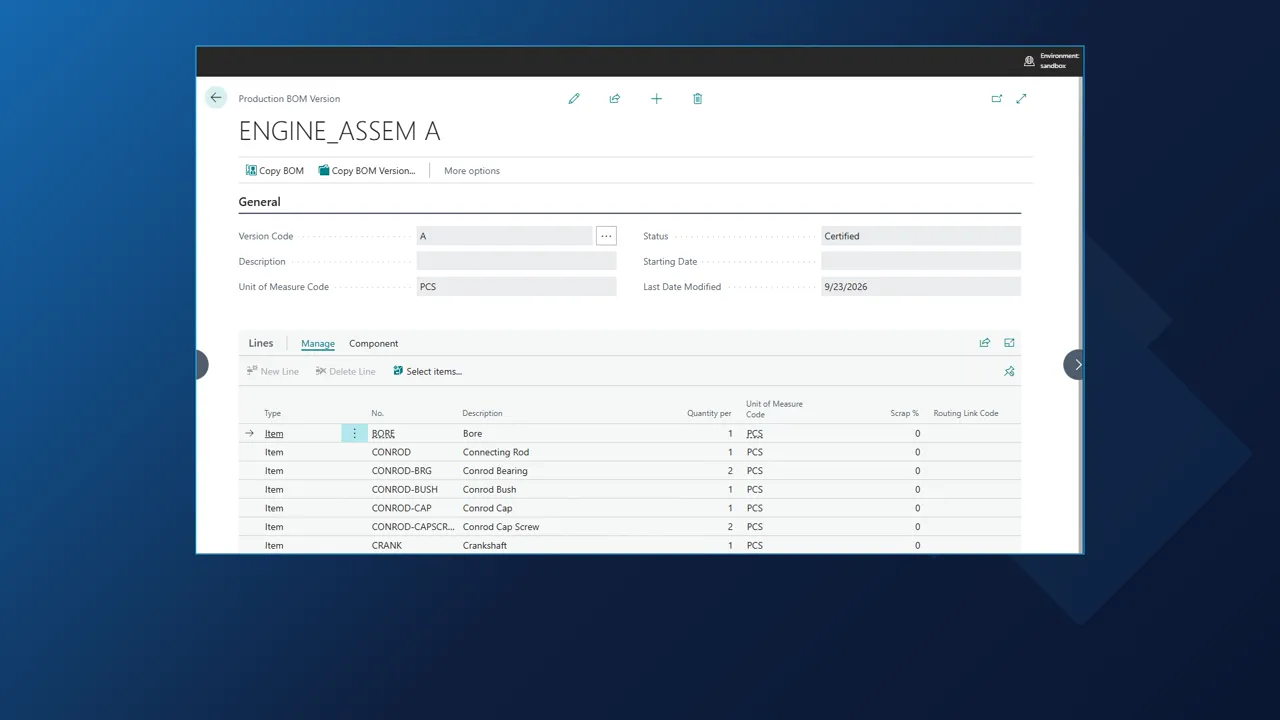
Business Central production BOM version A for ENGINE_ASSEM, status Certified, with the components sent from Inventor

Result in Business Central

Production BOM version A, certified

In Business Central the items carry the descriptions that were typed into Inventor. The production BOM for the assembly gets version A with status Certified, and the lines list every component with its quantity and unit of measure, in the same structure as the Inventor assembly.

  • Sub-assemblies get their own production BOM, so the whole tree arrives in one send.
  • Fixed values such as the material are set once in the field mapping and written on every send.
  • The picture on each item is the Inventor thumbnail, so the item list shows the same images as the Inventor browser.
INV2BC Create routing dialog in Inventor with the routing header and operation 10 on work center 100, status Created

Additional actions

Routings and other records from the same panel

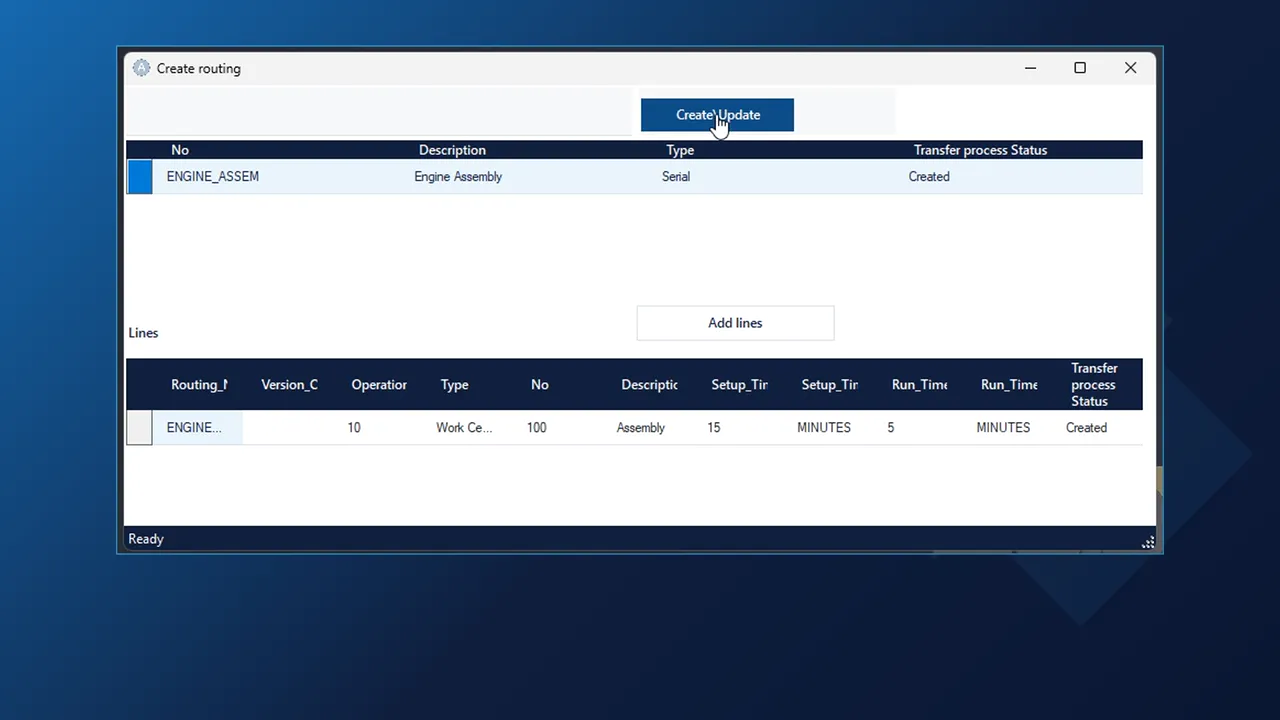
Steps that are not items or BOMs sit in a drop-down on the ribbon panel. Create routing opens a dialog with the routing header (number, description, type Serial) and its operation line: operation 10 on work center 100, 15 minutes setup and 5 minutes run time. Create/Update writes it to Business Central and the Transfer process Status column changes to Created.

  • The drop-down holds the other actions set up for your company, for example Update Item Category or Create Item UOM.
  • Open the routing in Business Central and the operation, its work center and its setup time are there.
INV2BC ERP data pane in Inventor comparing the engine assembly BOM with Business Central, every line marked with a green check

Check in Inventor

Business Central values next to the model

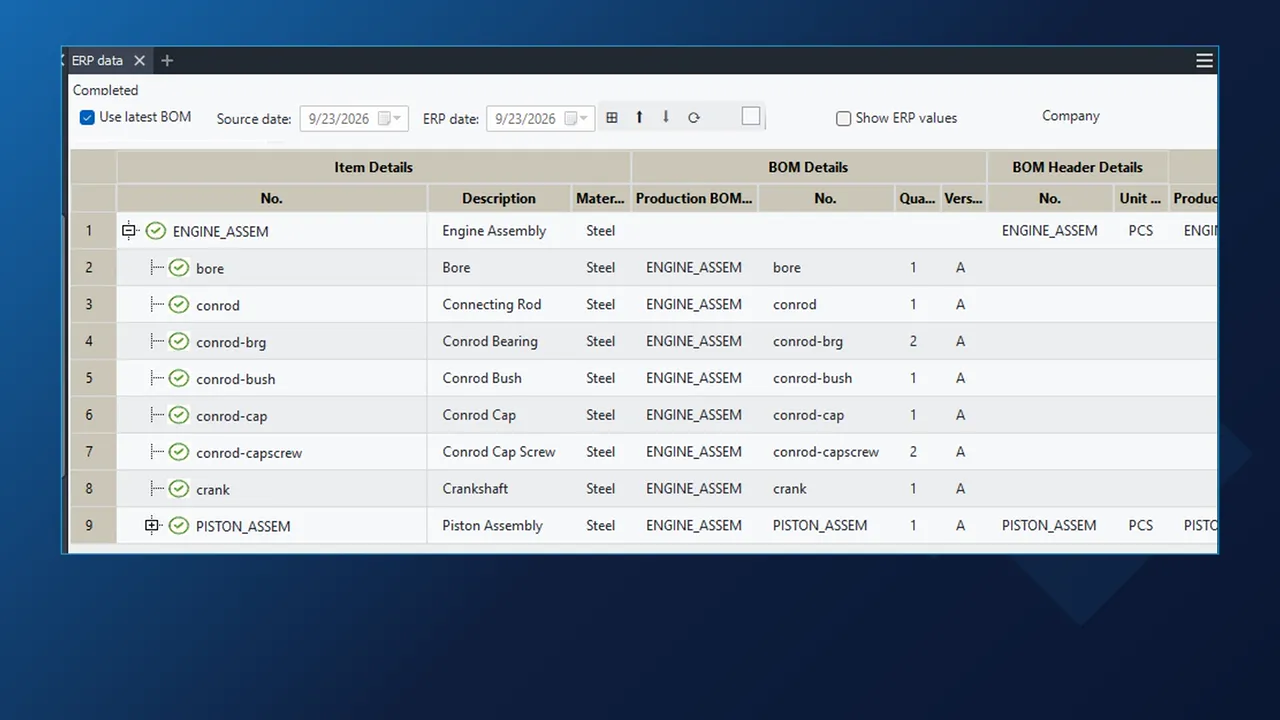
Show ERP Item Details reads the item live from Business Central (number, description, material) while the model stays open. The ERP data pane goes further: it lists the assembly tree with the Inventor values next to the item, production BOM and BOM header values in Business Central, and puts a green check on every line that agrees.

  • Hover over a cell to see the ERP value and the Inventor value side by side.
  • Source date and ERP date compare the BOM as it was on a given day, not only the latest one.
AI Macro Chat in Inventor asking for approval to change the item mapping and asking whether Conrod Bearing counts as a ring

Rules and AI

A purchase-or-make rule, and the question it raised

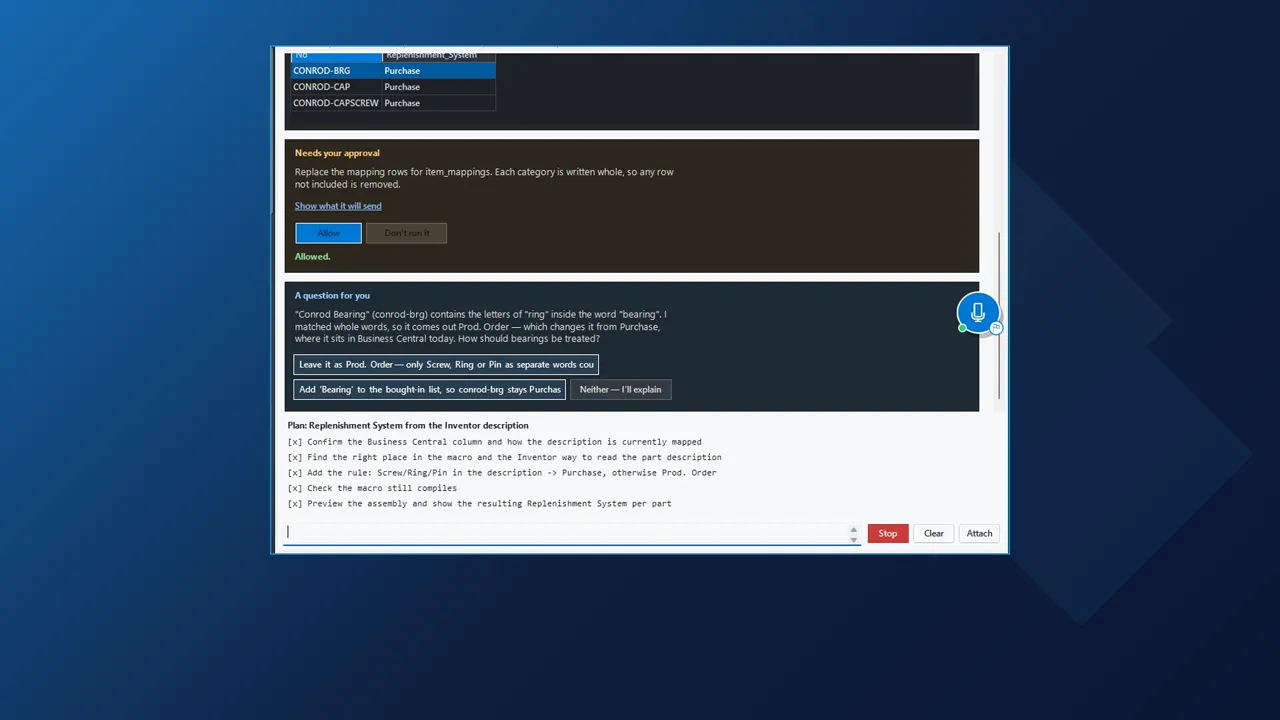
Rules that differ from company to company live in a macro. In the AI Macro Chat you describe the rule in plain words, here: parts with screw, ring or pin in the description are bought, everything else is made on a production order. The AI reads what it needs from Inventor and Business Central and asks for approval before it touches the field mapping.

  • When a rule is ambiguous it asks. With the demo assembly it noticed that Conrod Bearing contains the letters of ring and asked whether bearings should be bought or made.
  • It writes the macro and checks that it compiles before showing you anything.
Preview Data tab of the AI Macro Chat showing the replenishment system per part: Purchase for the cap screw, Prod. Order for the rest

Preview

The rule applied to the real assembly, before sending

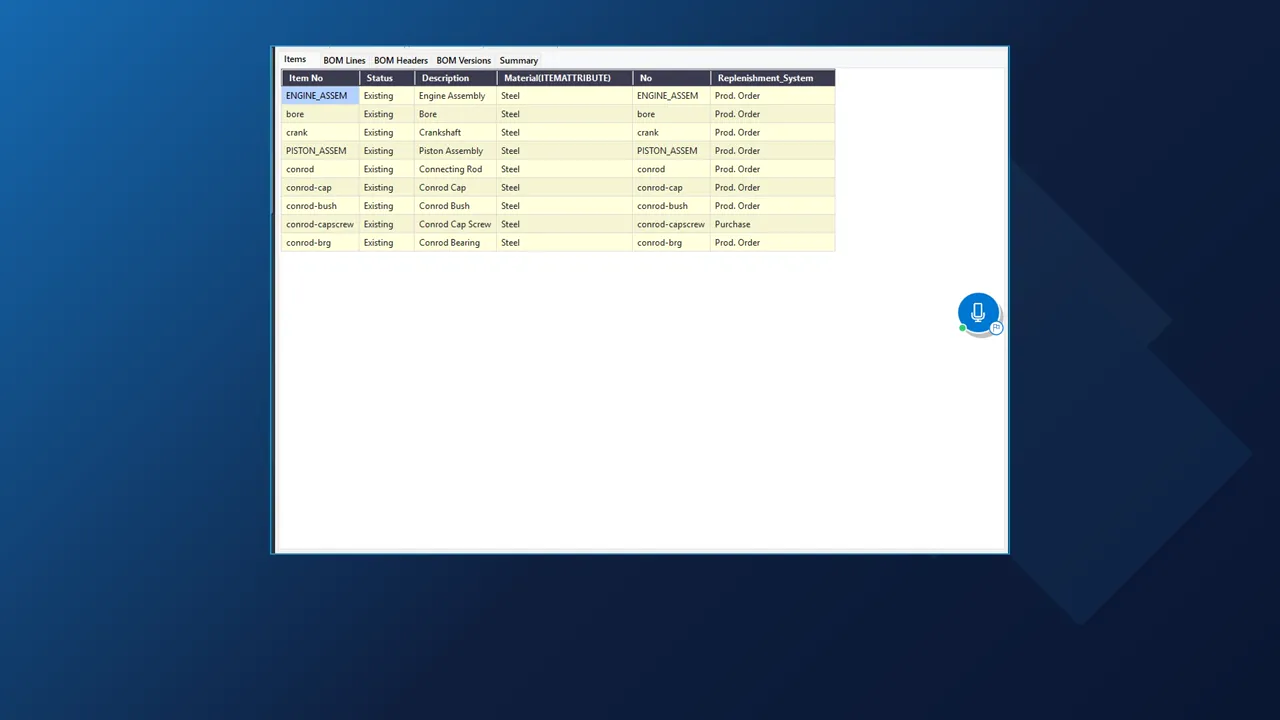
The Preview Data tab shows the new rule on the open assembly, with separate tabs for items, BOM lines, BOM headers and BOM versions. The cap screw comes out as Purchase, the other parts and both assemblies as Prod. Order.

Business Central has not been touched at this point; the send only happens when you choose Send to ERP.

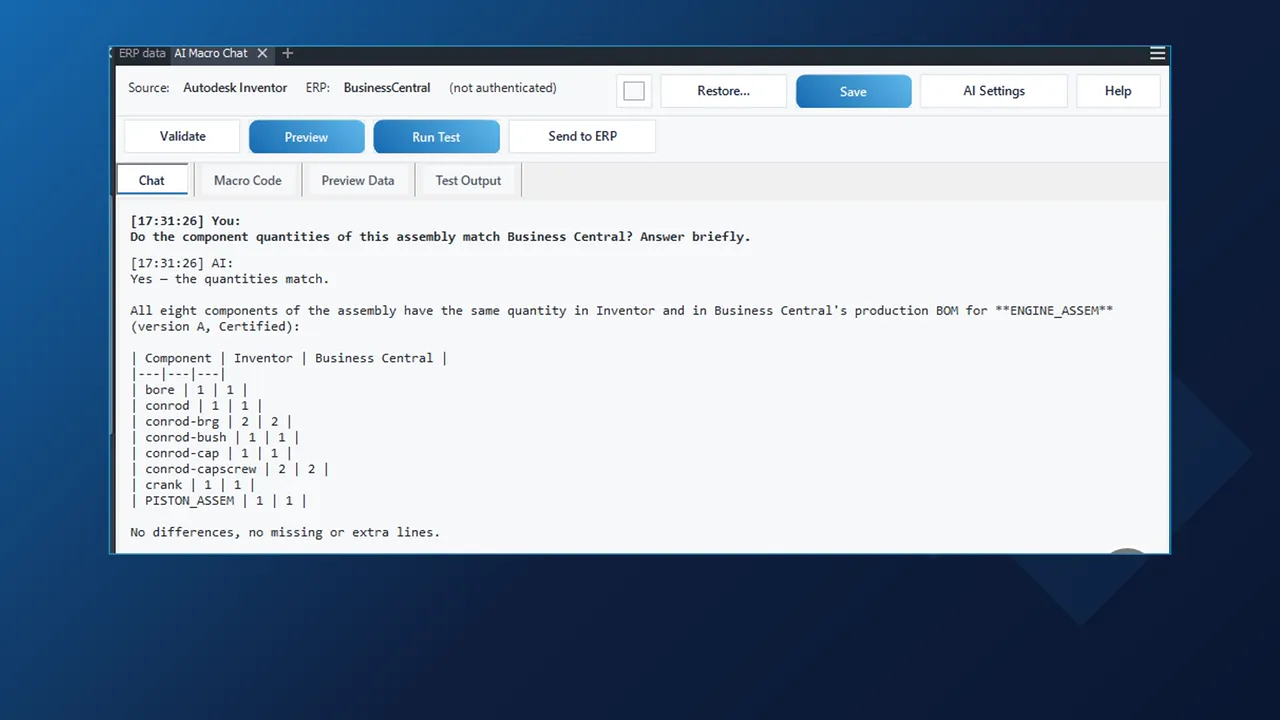
AI Macro Chat answering that all eight component quantities of the Inventor assembly match the Business Central production BOM

Questions

Ask whether the quantities match

The same chat answers questions. Asked whether the component quantities of the open assembly match Business Central, the assistant read the BOM in Inventor and the production BOM lines in Business Central and answered with a table: all eight components match, no missing or extra lines.

  • Lookups work the same way, for example which parts of this assembly already exist in Business Central and how each one is replenished today, answered in one table.
  • The AI behind the chat is your choice: your own key for Claude, OpenAI, Azure OpenAI or another compatible model, a ChatGPT sign-in, a coding agent such as Claude or Gemini, or your own assistant through the MCP connector.

Related integrations

Inventor with other ERPs, Business Central from other tools

The add-in is installed for one ERP: Business Central, Dynamics 365 Finance and Operations, SAP S/4HANA or SAP Business One.

FAQ

Questions about INV2BC

Where does INV2BC run?

INV2BC is an Autodesk Inventor add-in with its own INV TO ERP panel on the ribbon. It works on the assembly you have open and reads the iProperties of the assembly and every part and sub-assembly below it. If your released data lives in Autodesk Vault, the same integration runs there as AV2BC.

What ends up in Business Central after Send to BC all levels?

Items with the descriptions from Inventor, a production BOM for the assembly and for each sub-assembly, BOM version A with status Certified, and a line for every component with its quantity and unit of measure. The Inventor thumbnail becomes the item picture.

Can INV2BC create routings or other records?

Yes, as additional actions in a drop-down on the same ribbon panel. Create routing shows the routing header and its operation lines before it writes them; other actions set up per company include Update Item Category and Create Item UOM.

How do I see whether Inventor and Business Central still agree?

Show ERP Item Details reads the item live from Business Central. The ERP data pane lists the assembly tree with the Inventor values next to the item, production BOM and BOM header values in Business Central, with a green check on matching lines. Source date and ERP date compare the BOM as it was on a chosen day.

What does the AI do when a rule is ambiguous?

It asks. With the rule that parts with screw, ring or pin in the description are bought, it noticed that Conrod Bearing contains the letters of ring and asked whether bearings are bought or made. It also asks for approval before changing the field mapping, compiles the macro and shows a preview before anything is sent.

Which AI and which ERP can I use?

For the AI: your own key for Claude, OpenAI, Azure OpenAI or a compatible model, a ChatGPT sign-in, a coding agent such as Claude or Gemini, or your own assistant through the MCP connector. For the ERP: the installer offers Business Central, Dynamics 365 Finance and Operations, SAP S/4HANA and SAP Business One.

Send one of your Inventor assemblies to Business Central in a demo

Bring an assembly and the Business Central fields your team fills in by hand today. We will map the iProperties, send it, and show the check from the ERP data pane. Prefer email? Use the contact page.

Cookies Notice

We use cookies to improve your browsing experience and to understand how our website is used. Cookies help us deliver better performance, personalize content, and analyze traffic. By continuing to use PLM CAD Utilities, you agree to our use of cookies.