
AV2BC · Autodesk Vault add-in

Autodesk Vault to Dynamics 365 Business Central Integration

Right-click an assembly in the Vault item master and AV2BC writes the items, the production BOM, its version and every line to Business Central, then shows you from Vault whether the two still agree.

Vault and Business Central

One item master for engineering, one for the business

Every released design in Autodesk Vault has to become items and a production BOM in Microsoft Dynamics 365 Business Central (formerly Dynamics NAV). Typed in by hand, that is slow for every assembly and every revision, and a wrong quantity is only found when the wrong part is ordered.

AV2BC runs inside Vault. It reads the item and its bill of materials, applies your field mapping and company rules, and writes the result to Business Central. Transfers can also run on a workflow or lifecycle change, and the ERP side can be read back into Vault at any time.

  • All levels in one send

    Items, production BOM header, BOM version and lines, in the order Business Central certifies them.

  • Checked from Vault

    ERP Item Details and ERP data read Business Central live, with differences in red.

  • Your rules in a macro

    The AI Macro Generator writes the rule; you approve every change.

  • Every run recorded

    Status per item and step, a failed-action list, reports and logs.

Video

AV2BC from the Vault item master to a certified production BOM

The demo sends a bracket assembly, opens the result in Business Central, catches a changed quantity from Vault and adds a replenishment rule with the AI assistant.

How it works

From a right-click in Vault to a production BOM in Business Central

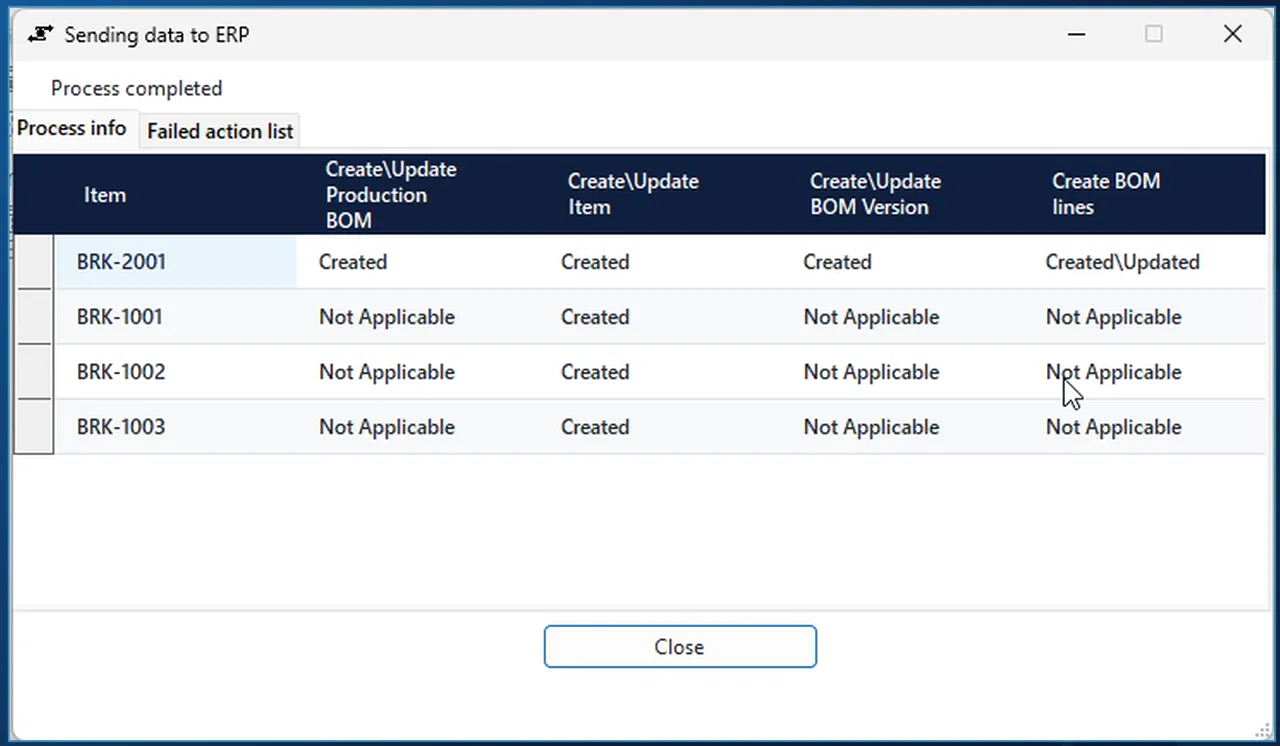
AV2BC send dialog after Send to BC all levels: BRK-2001 with production BOM, item, BOM version and BOM lines created, three components created as items

Send

Send an assembly with all its levels

In the Vault item master, select the assembly, right-click and choose AV2ERP > Send to BC all levels. AV2BC reads the item and every level of its bill of materials, applies your company rules and writes the lot to Business Central in one pass. Send to BC on its own sends only the selected item.

  • The result dialog has one row per item and one column per step: item, production BOM, BOM version and BOM lines.
  • Each cell reads Created, Updated, Created\Updated or Not Applicable. In the demo the three parts only needed an item; the assembly got the item, the production BOM, version A and its lines.
  • Anything that fails goes to the Failed action list tab next to it, so you do not have to dig through a log file.
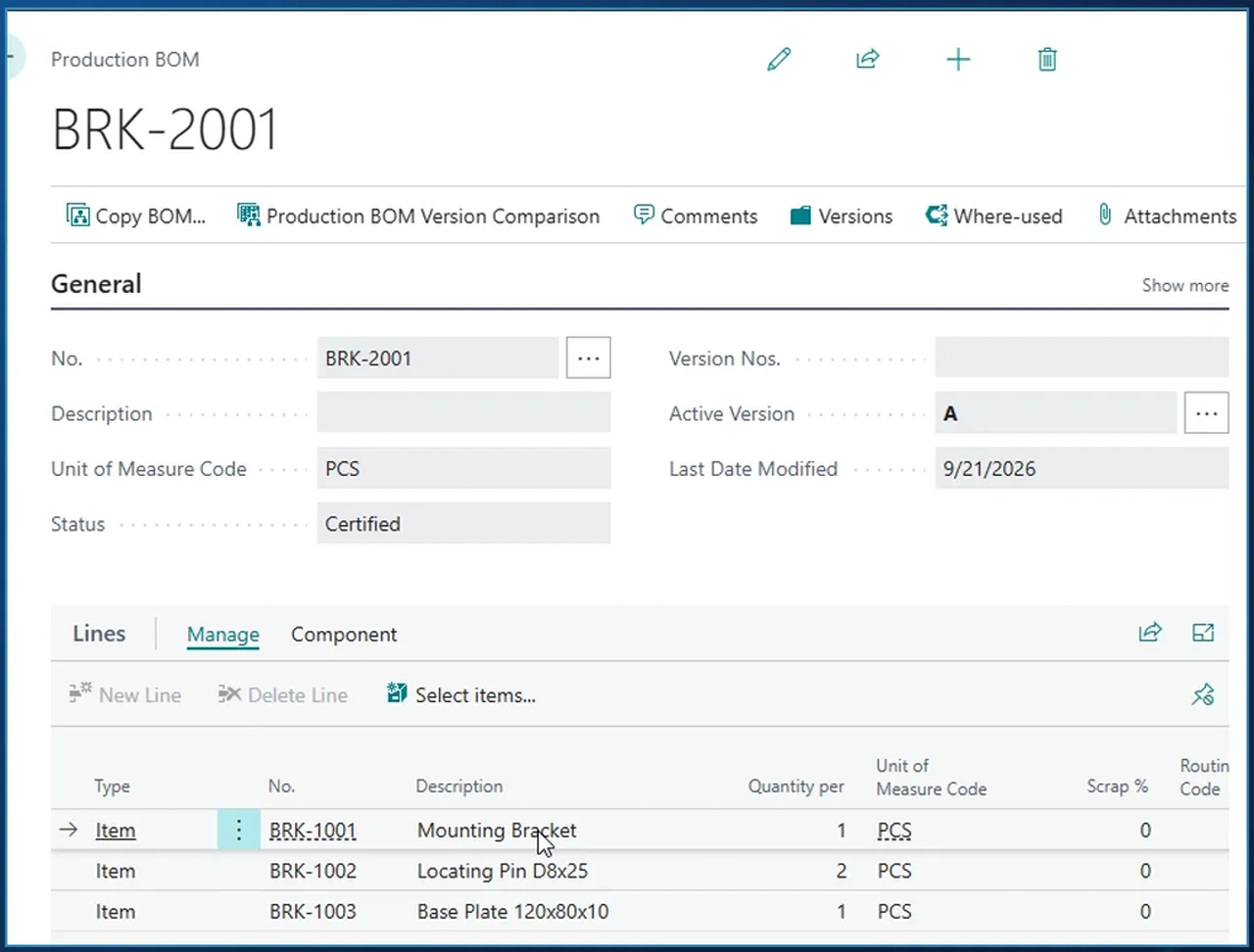
Business Central production BOM BRK-2001, status Certified, active version A, with three component lines and their quantities

Result in Business Central

A certified production BOM with version A active

The four items arrive with their descriptions from Vault. BRK-2001 gets a production BOM with status Certified and version A as the active version. Each line carries the component number, quantity per and unit of measure from the Vault bill of materials, so two locating pins in Vault is a quantity of 2 on the line.

  • Items, production BOM header, BOM version and lines are written in the order Business Central needs to certify the BOM.
  • Values that are the same on every send, such as the material, are set once in the field mapping.
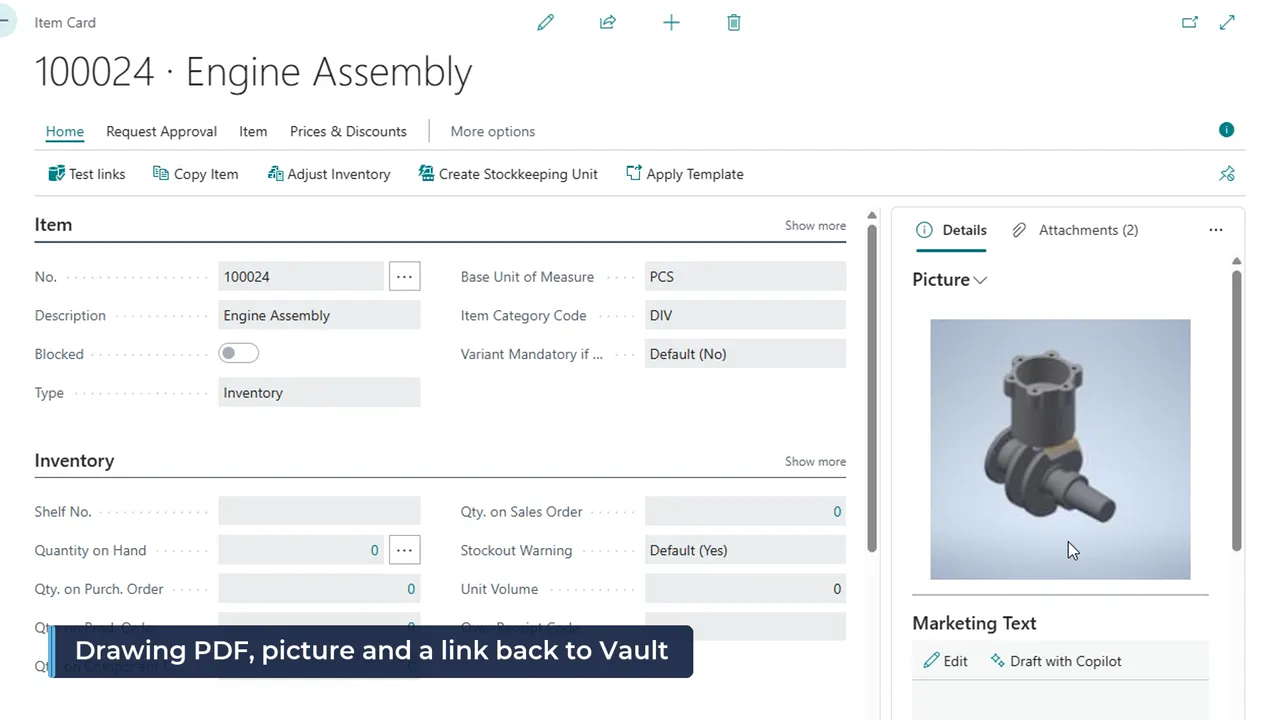
Business Central item card for 100024 Engine Assembly with the Vault thumbnail as the item picture

Files

Picture, drawing PDF and a link back to Vault

The design goes with the item. On the Business Central item card the picture is the Vault thumbnail, the drawing PDF from Vault is listed under Attachments, and a link in the item's Links opens the same item in Autodesk Vault.

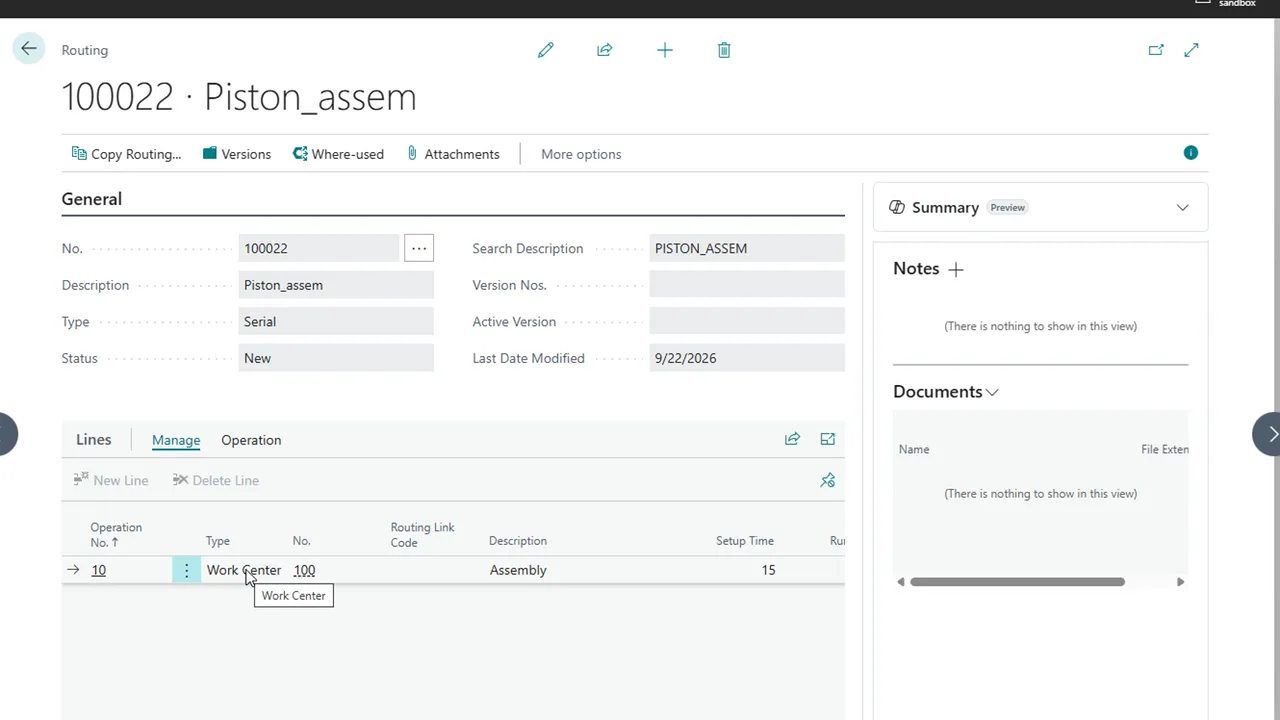
Business Central routing 100022 created from Vault with operation 10 on work center 100 and a setup time of 15

Additional actions

Create a routing from the same right-click menu

Choose Create routing on an assembly and AV2BC first shows the routing header and its operation lines in a dialog. Click Create\Update and the routing is in Business Central: operation 10 on work center 100, with its setup and run times.

  • The dialog reports a transfer status per line, the same way the send dialog does.
  • The demo menu also has Create Item UOM, Create Item Category, Create routing header and Add Vault link, each with an Update counterpart. Which actions appear is part of your configuration.
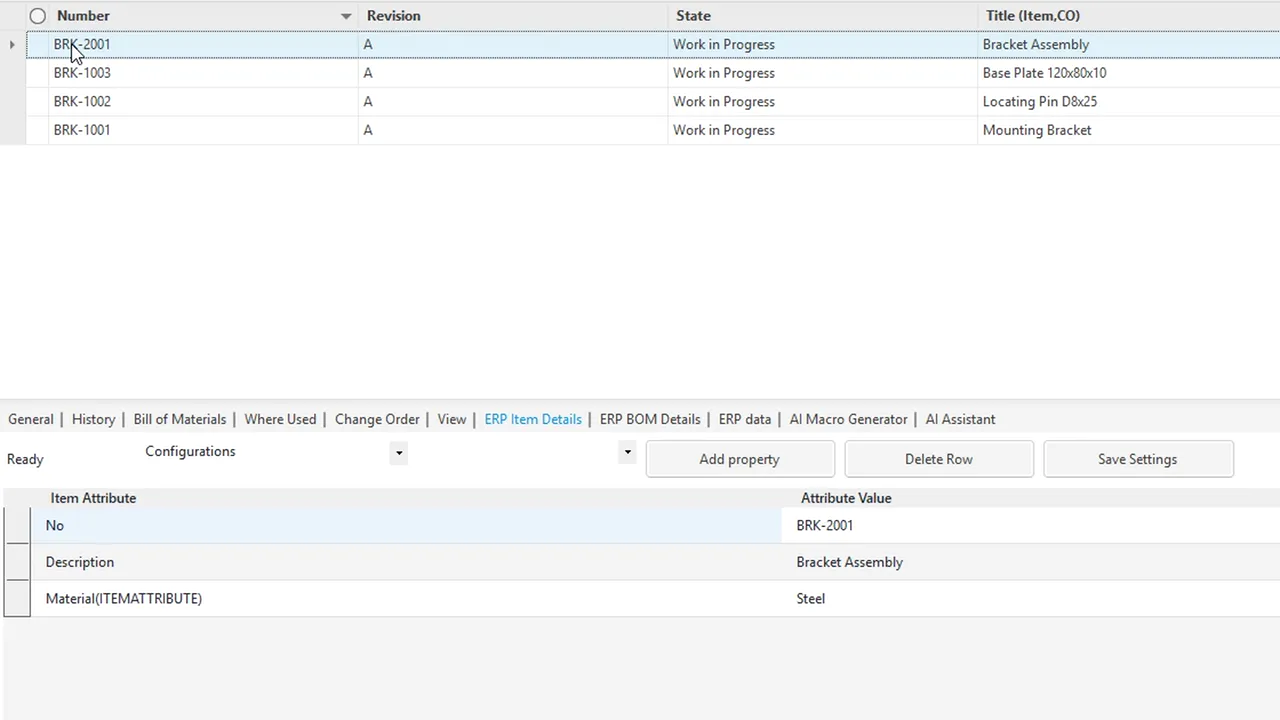
ERP Item Details tab in Autodesk Vault showing Business Central item BRK-2001 with its description and material

Check in Vault

Business Central item properties inside Vault

The ERP Item Details tab reads the item live from Business Central, so you see whether a Vault item already exists in the ERP, and with which values, without opening Business Central.

  • Choose which item properties the tab shows.
  • Save the layout once and every user gets the same view on the next item.
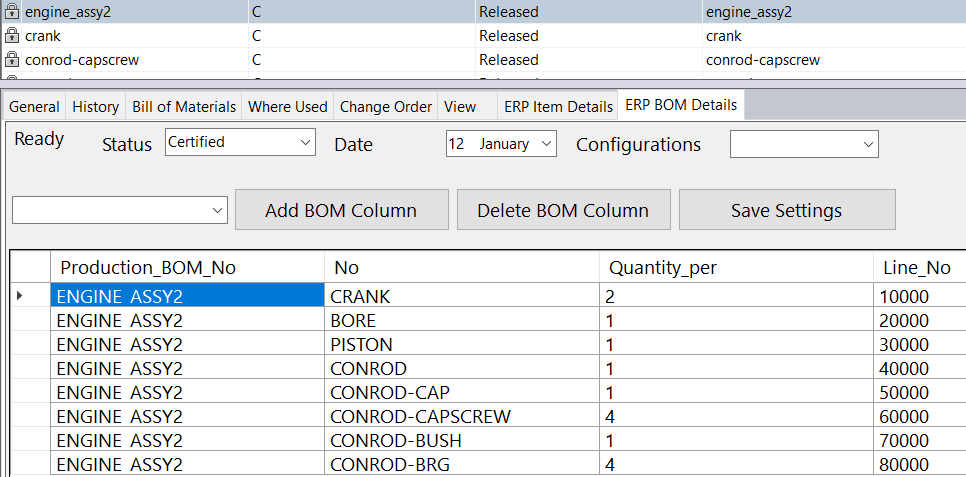
ERP BOM Details tab in Autodesk Vault listing the Business Central production BOM lines of ENGINE_ASSY2, filtered by status Certified and a date

Check in Vault

Preview the Business Central BOM, including older versions

The ERP BOM Details tab lists the production BOM lines as Business Central has them, filtered by BOM status and date. With BOM versioning switched on in Business Central, older versions can be previewed as well as the current one.

  • Pick the ERP BOM columns that matter to you.
  • The column layout is saved for the next preview.
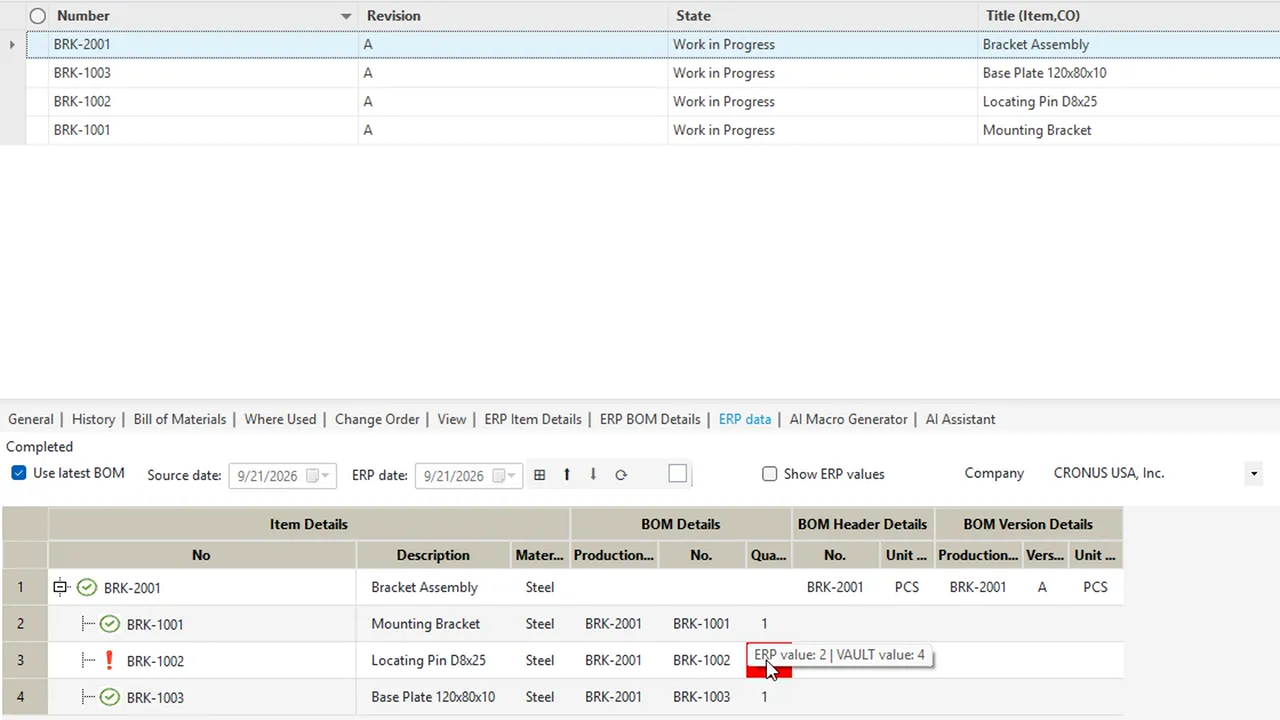
ERP data tab in Autodesk Vault comparing the Vault BOM with Business Central: green checks on matching lines, the locating pin quantity red with ERP value 2 and Vault value 4

Compare

Compare the Vault BOM with the Business Central BOM

The ERP data tab puts the Vault BOM and the Business Central BOM side by side, with a green check on every row that agrees and a red cell where it does not. In the demo the locating pin quantity was changed to 4 in Vault while Business Central still had 2; hovering the red cell shows both values.

  • Item fields of first-level components, BOM lines, the BOM header and the BOM version are compared, not only quantities.
  • Untick Use latest BOM to compare as of a date, with one date for Vault and one for Business Central. On 10 March the sub-assembly in Vault was still revision A, without the part Business Central already listed; on today's date both sides agree.
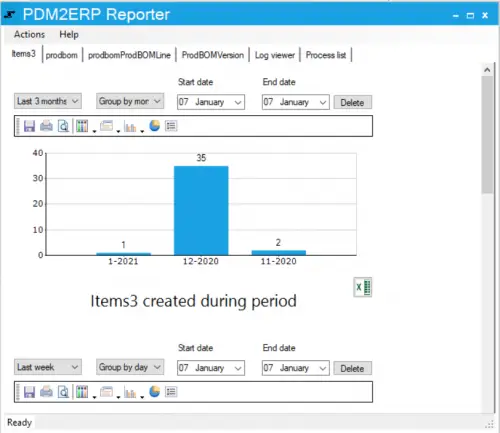
PDM2ERP Reporter with a bar chart of items created per month and tabs for production BOMs, BOM lines, BOM versions, the log viewer and the process list

Traceability

See what was sent, by whom and when

The PDM2ERP reporting tool keeps track of everything sent from Vault to Business Central, for the audit trail and for finding the send that went wrong.

  • Number of items created or updated in a chosen period, and by which user.
  • Reports export to Excel.
  • The log viewer and the process list hold the details of past runs for error investigation.
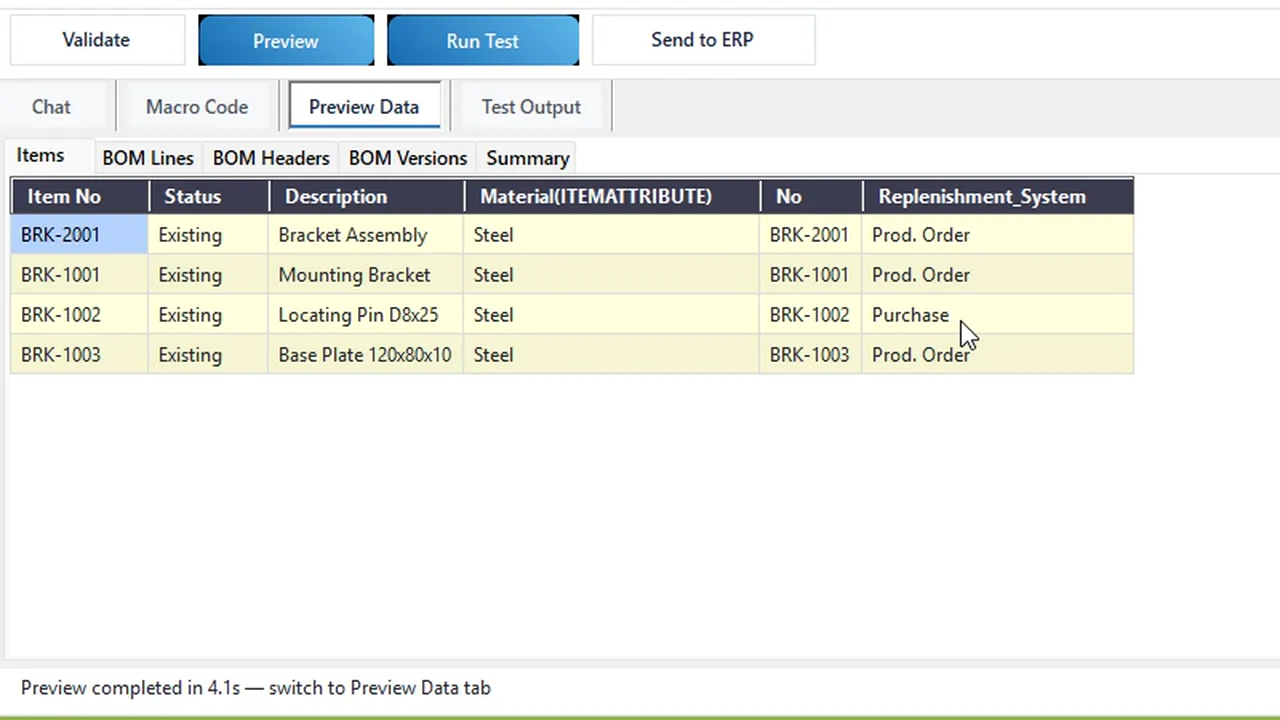
AI Macro Generator preview in Vault: Replenishment System set to Purchase for the locating pin and Prod. Order for the other items, before anything is sent

Rules and AI

Company rules written in plain language

The field mapping decides which Vault property fills which Business Central field. Rules that go further live in a macro, and the AI Macro Generator tab in Vault writes that macro with you. The request in the demo: items in the Purchased category in Vault get Replenishment System Purchase, everything else Prod. Order.

  • The assistant first reads the current mappings, the macro, the Business Central field list and the Vault category property, and shows its plan as a checklist.
  • Before it changes the field mapping it stops at an Allow / Don't run it prompt that names the mapping rows it will replace.
  • It writes the macro, checks that it compiles and runs Preview on the real assembly: the locating pin comes out as Purchase, the rest as Prod. Order.
  • Nothing has been sent at that point. Save and Send to ERP stay your decision.
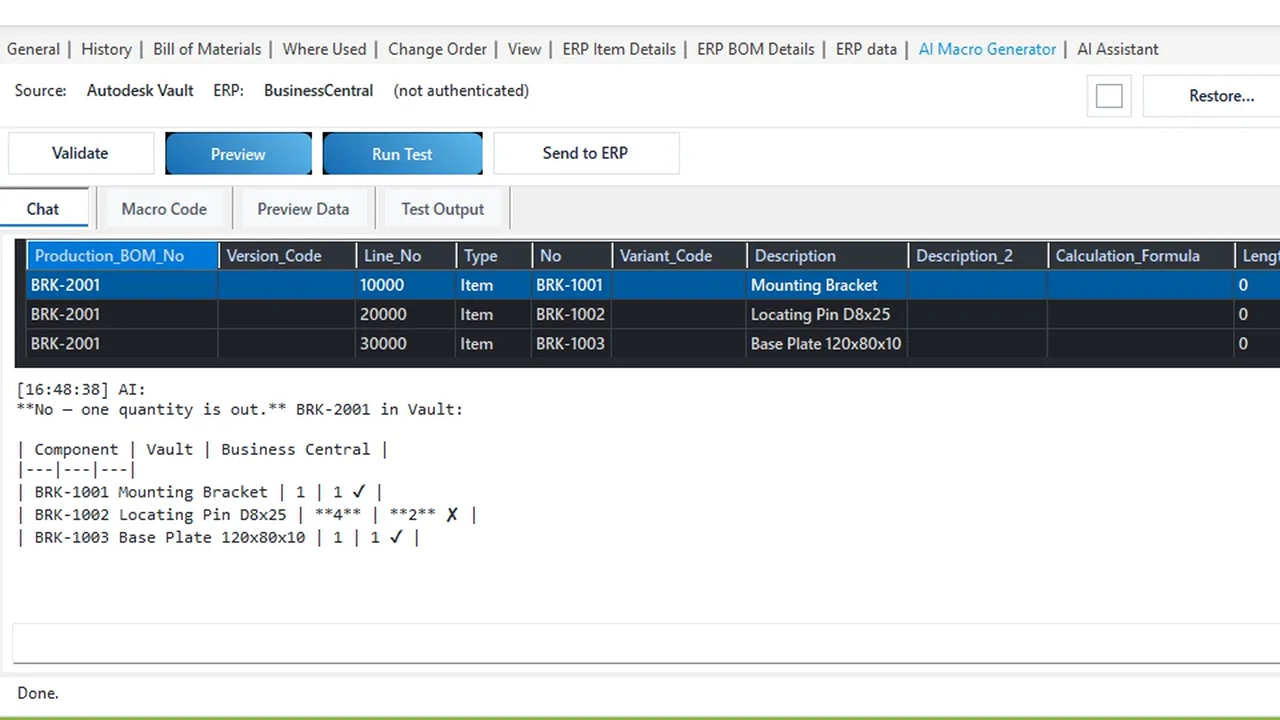
AI chat in Vault answering whether BOM quantities match Business Central, with the production BOM rows it read and a Vault versus Business Central table

Questions and search

Ask about Vault and Business Central in the same chat

Asked whether the component quantities of the assembly match Business Central, the assistant read the Vault BOM and the production BOM lines from Business Central and answered with a table: the locating pin is 4 in Vault and 2 in Business Central, the other two match.

  • The rows it read from Business Central are shown above the answer, so you can see what it is based on.
  • Searches across both systems: find the Vault items with Bracket in the title and check which exist in Business Central, answered in one table.
  • Questions about Vault itself, such as whether any Vault jobs failed in the last seven days.

The AI is yours to pick in AI Settings: your own key for Claude, OpenAI, Azure OpenAI or another OpenAI-compatible model, a ChatGPT sign-in, a coding agent such as Claude or Gemini, or your own assistant through the MCP connector.

Related integrations

Same product, other ERPs and CAD systems

AV2ERP is one product for Business Central, Dynamics 365 Finance and Operations, SAP S/4HANA and SAP Business One. The ERP is chosen when you install it.

FAQ

Questions about AV2BC

What does AV2BC create in Business Central from a Vault item?

Send to BC all levels creates or updates the item for every level of the Vault bill of materials, and for each assembly the production BOM header, the BOM version and the BOM lines, in the order Business Central needs to certify the BOM. Configured additional actions add routings, item units of measure, item categories and the link back to Vault.

Can I compare the Vault BOM with the Business Central production BOM?

Yes. The ERP data tab in Vault shows both BOMs side by side, compares item fields, BOM lines, the BOM header and the BOM version, and marks every difference in red. Untick Use latest BOM to compare as of a date, with one date for Vault and one for Business Central.

How are our own rules applied, for example the replenishment system?

The field mapping says which Vault property fills which Business Central field and holds fixed values. Rules beyond that go in a macro. The AI Macro Generator tab in Vault writes the macro from a plain-language request, asks before it changes the mapping, compiles it and previews the result on a real assembly before anything is sent.

Which AI does the assistant use?

The one you choose in AI Settings: your own key for Claude, OpenAI, Azure OpenAI or another OpenAI-compatible model, a ChatGPT sign-in, a coding agent such as Claude or Gemini, or your own assistant through the MCP connector. Nothing in the mapping, the macro or Business Central changes until you approve it.

Does it work with Dynamics NAV, other ERPs or Autodesk Inventor?

AV2BC reads and writes Business Central, formerly Dynamics NAV. The same product, AV2ERP, connects Vault to Dynamics 365 Finance and Operations, SAP S/4HANA and SAP Business One; the ERP is chosen at installation. The integration also runs inside Autodesk Inventor.

Can we see who sent which items and when?

The PDM2ERP reporting tool counts the items created or updated in a period and by which user, and exports the report to Excel. The log viewer and the process list keep the history of each run for error investigation.

See your own Vault assembly as a production BOM in Business Central

Book a demo and we will send one of your assemblies, compare it from Vault and set up a rule your company uses today. Or write to us with your Business Central version and the fields you fill by hand.

Cookies Notice

We use cookies to improve your browsing experience and to understand how our website is used. Cookies help us deliver better performance, personalize content, and analyze traffic. By continuing to use PLM CAD Utilities, you agree to our use of cookies.