INV2ERP · Autodesk Inventor add-in

Autodesk Inventor to SAP S/4HANA Cloud Integration

Products and material BOMs in SAP, sent from the assembly you have open in Inventor. A resend touches only what changed, and the ERP data pane shows where Inventor and SAP differ.

Inventor and SAP S/4HANA

An Inventor add-in that writes products and material BOMs

Every design that goes to production has to exist in SAP as products and a material BOM, and it has to be corrected there again at every change. Typing that in by hand from the Inventor model is slow and easy to get wrong. INV2ERP adds its own panel to the Inventor ribbon and sends the open assembly, with all its levels, to SAP S/4HANA.

Which iProperty fills which SAP field is set up once in the settings, together with fixed values such as the product type and the unit that are the same on every send. Company-specific rules go into a macro, which you can write yourself or have the built-in AI assistant write and test for you.

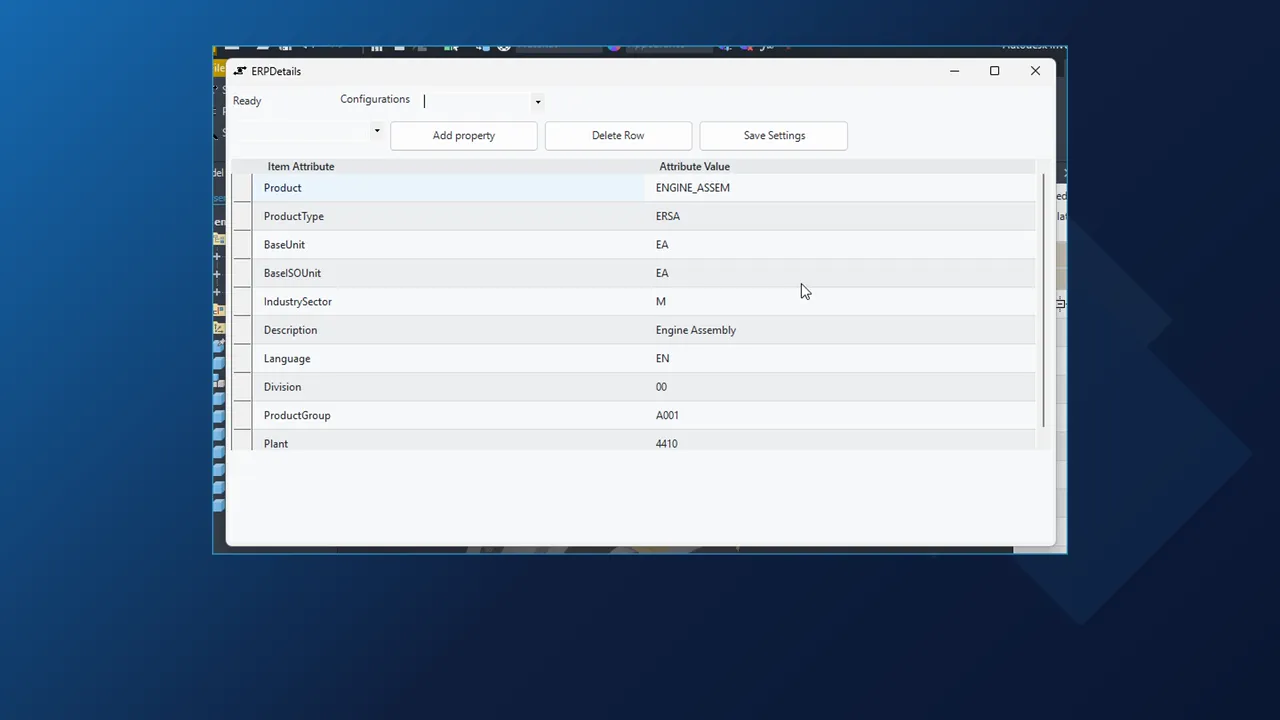
ERP Item Details window in Inventor showing the SAP S/4HANA product ENGINE_ASSEM with product type, base unit and plant
  • Material BOM per plant

    Stock items with quantity, unit and valid-from date, sub-assemblies included.

  • Resends skip the unchanged

    Products SAP already has are reported as Update skipped.

  • SAP read inside Inventor

    Product type, base unit, plant and BOM values without SAP GUI or Fiori.

  • Product types by rule

    HAWA, FERT or HALB per part, previewed before the next send.

Video

Inventor to SAP S/4HANA, recorded on a live system

The engine assembly is sent again after two description changes, the material BOM is opened in SAP, a third change is caught in the ERP data pane, and the product type rule is written through the chat.

How it works

Inventor and SAP S/4HANA in practice

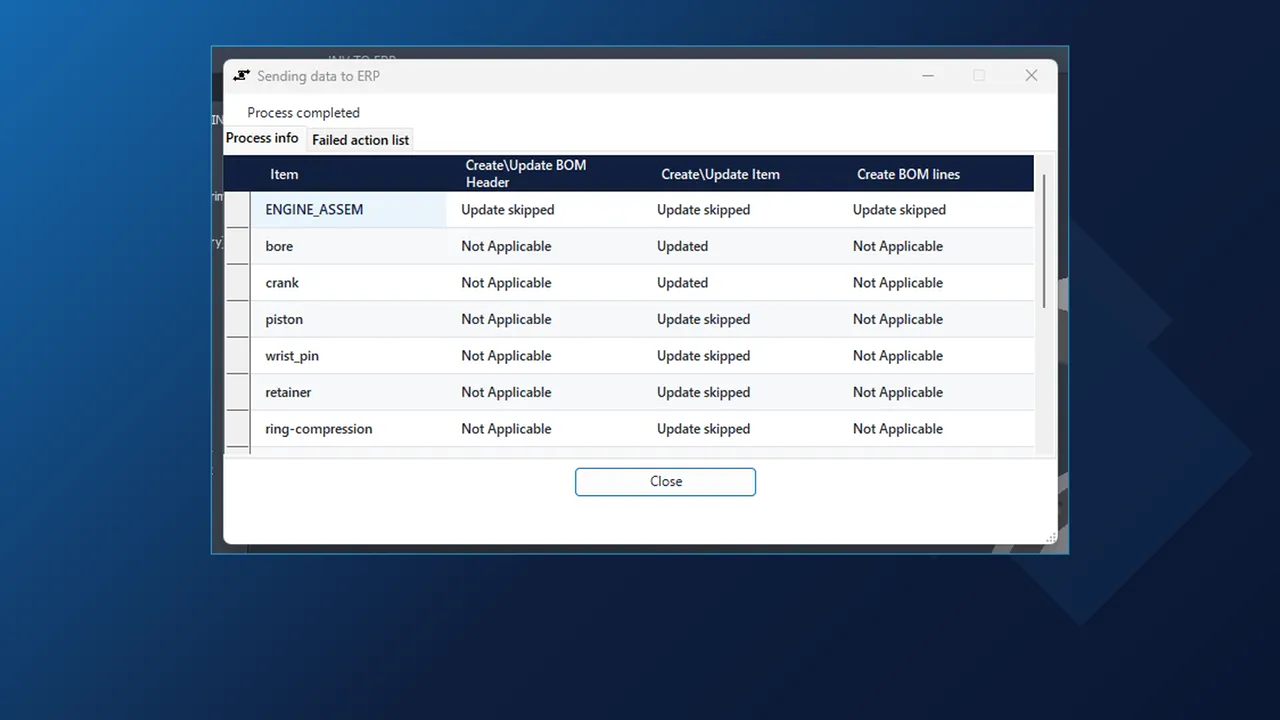
INV2ERP result dialog after a send from Inventor to SAP S/4HANA: two products updated, the rest already current

Send

Bringing SAP up to date

Open the assembly and send it to SAP S/4HANA from the Inventor ribbon, all levels. INV2ERP reads the iProperties of the assembly and everything below it, applies the company rules, and brings the products, the material BOM and its BOM items up to date.

  • The result dialog shows per item what happened to the BOM header, the product and the BOM items.
  • In the demo two parts had new descriptions in Inventor. Those two, bore and crank, were Updated; everything else was Update skipped because SAP already had the same values.
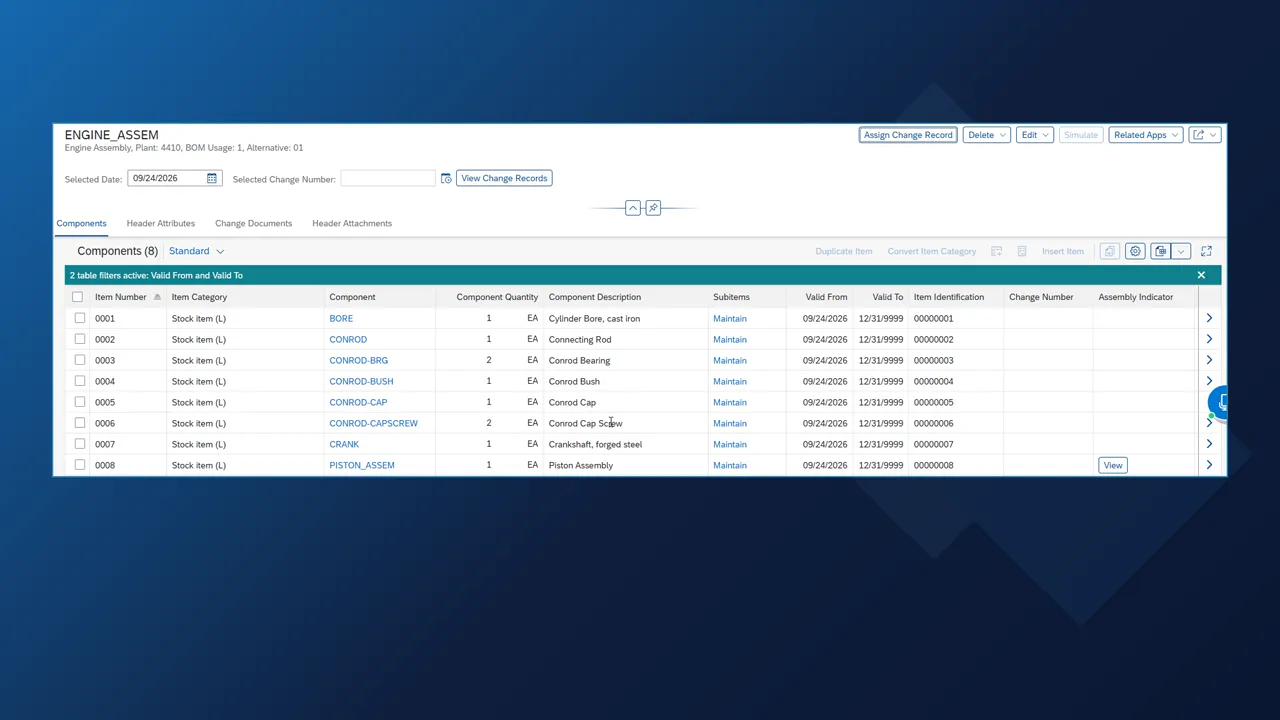
SAP S/4HANA Maintain Bill of Material for ENGINE_ASSEM, plant 4410, with the eight components sent from Inventor

Result in SAP

The material BOM for plant 4410

In Maintain Bill of Material the assembly has its material BOM for plant 4410 with every component as a stock item, with its quantity and unit. SAP has no BOM versions like Business Central or Dynamics 365; each BOM item carries the date it is valid from instead.

  • The products carry their descriptions from Inventor, including the two that just changed.
  • Sub-assemblies such as the piston assembly get a material BOM of their own.
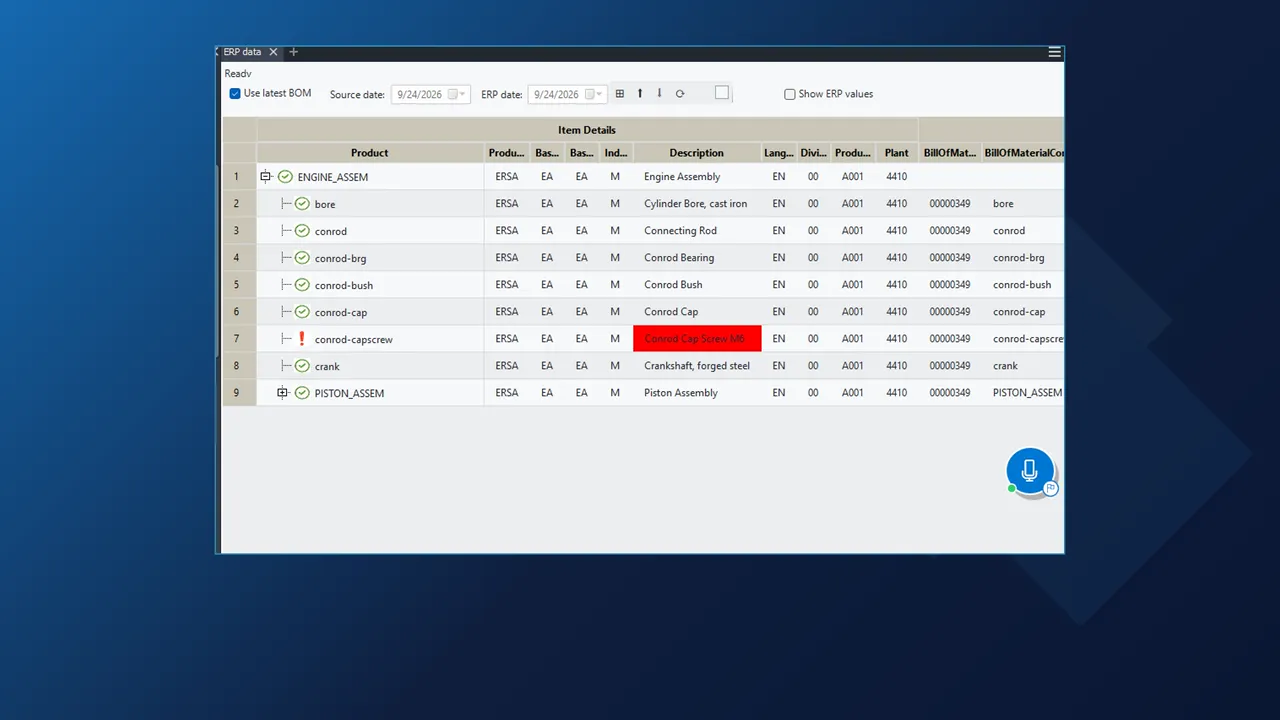
INV2ERP ERP data pane in Inventor comparing with SAP S/4HANA, the cap screw description marked red

Check in Inventor

Inventor next to SAP, line by line

Show ERP Item Details reads the product from SAP while the model is open: product type, base unit, industry sector, description, language, division, product group and plant. The ERP data pane lists the assembly tree with the Inventor values next to the SAP product and BOM values, and every line that agrees gets a green check.

  • After the send, the cap screw's description was changed in Inventor. The cell turns red until the next send, so the difference is visible before a buyer orders from an old description.
  • Source date and ERP date pick the day to compare against.
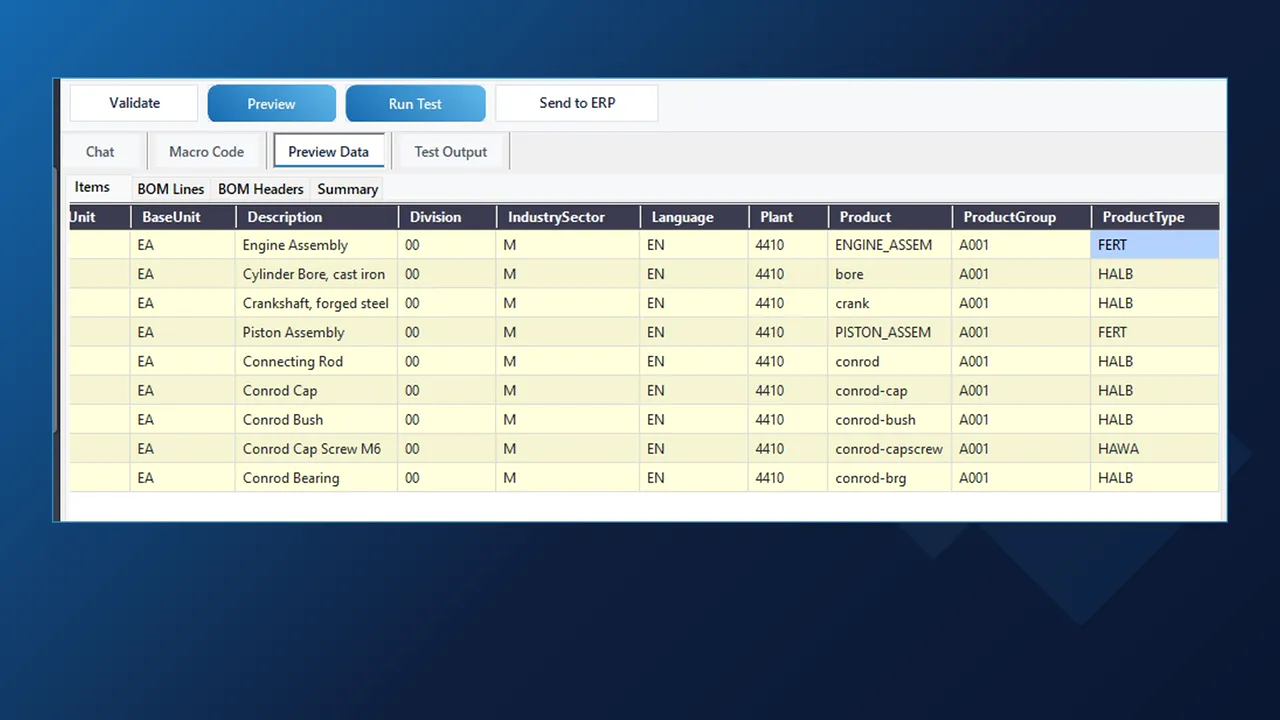
Preview Data in the AI Macro Chat with SAP product types per part: HAWA for the cap screw, FERT for the assemblies, HALB for the rest

Rules and AI

Product type rule in plain words

The rule for this company: parts with screw, ring or pin in the description are bought in and become trading goods (HAWA), every assembly is a finished product (FERT), everything else is semi-finished (HALB). Typed into the AI Macro Chat as a sentence, the AI looks up the fields in Inventor and SAP, writes the rule into the macro, compiles it and runs a preview on the open assembly.

  • The preview shows the cap screw as HAWA, both assemblies as FERT and the rest as HALB.
  • Conrod Bearing stays HALB because the rule matches whole words only, and the AI says so in its answer.
  • Nothing has been sent to SAP; the new rule waits for Save and the next send.
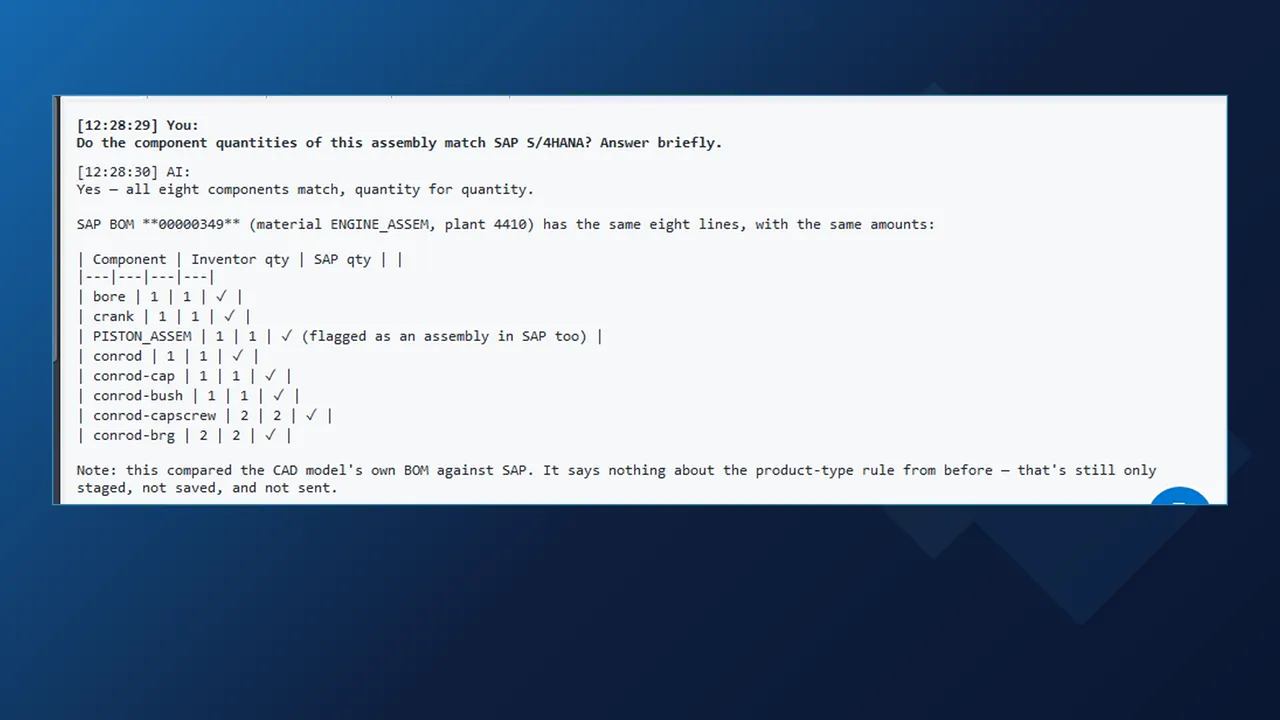
AI Macro Chat answering that all eight components of the Inventor assembly match the SAP S/4HANA BOM quantity for quantity

Questions

Checking quantities with a question

Ask whether the component quantities of the assembly match SAP, and the assistant reads the BOM in Inventor and the BOM items in SAP. Here it found BOM 00000349 for ENGINE_ASSEM in plant 4410 with the same eight lines and the same quantities, and listed them with a check per line.

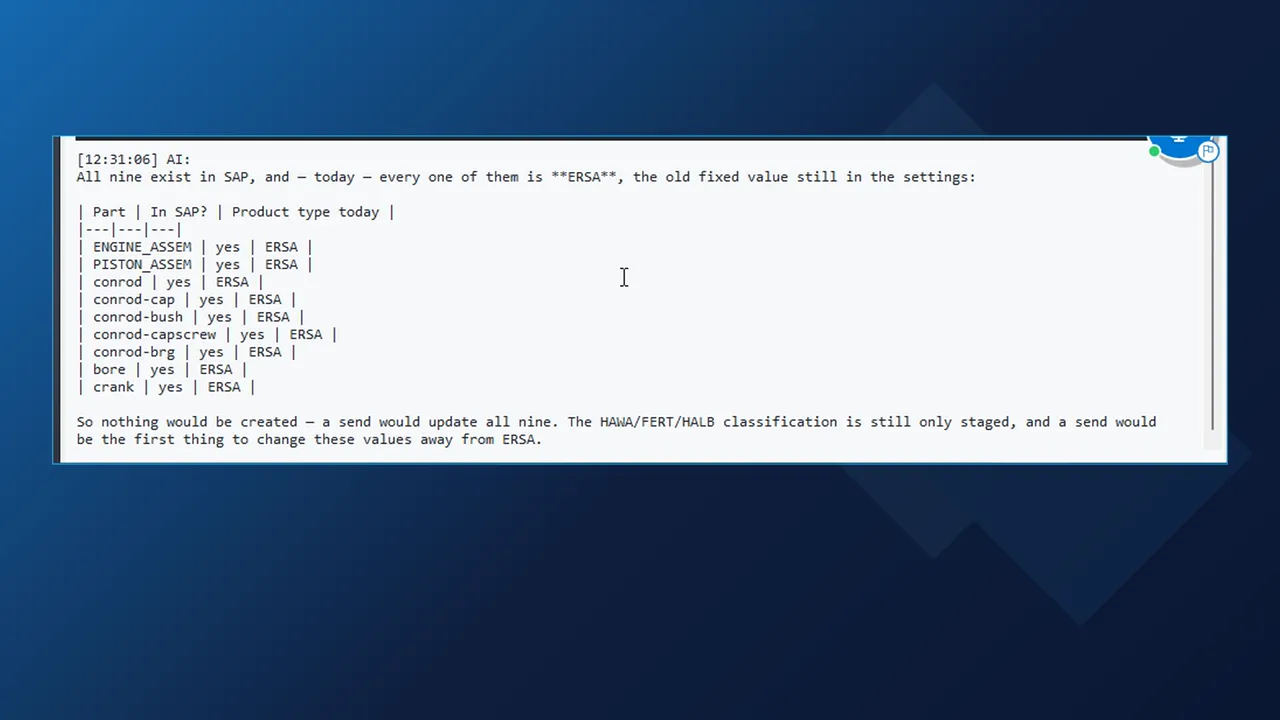
AI Macro Chat table of the nine Inventor parts found in SAP S/4HANA with their current product type ERSA

Search

Looking up products in SAP

Asked which parts already exist in SAP and what product type they have today, the assistant queried the product service and answered in one table: all nine exist, all still ERSA (spare parts), the fixed value from the old settings. A send with the new rule would update them rather than create anything.

  • The chat works with your own key for Claude, OpenAI, Azure OpenAI or a compatible model, with a ChatGPT sign-in, with a coding agent such as Claude or Gemini, or with your own assistant connected through the MCP connector.
  • The AI proposes changes; the mapping, the macro and SAP stay as they are until you approve.

Related integrations

More ways to connect Inventor and SAP

The installer asks which ERP to connect to: SAP S/4HANA, SAP Business One, Business Central or Dynamics 365 Finance and Operations.

FAQ

Questions about INV2ERP for SAP S/4HANA

What does INV2ERP create in SAP S/4HANA?

Products for the parts and assemblies, with descriptions from the Inventor iProperties, and a material BOM for the plant with every component as a stock item with quantity, unit and a valid-from date. Each sub-assembly gets a material BOM of its own.

What happens when I send an assembly again?

Only what changed is written. Products whose values SAP already has are reported as Update skipped; in the demo the two parts with new descriptions, bore and crank, were Updated and everything else was left alone.

SAP has no BOM versions. How are changes dated?

Each BOM item carries the date it is valid from. In Inventor, the ERP data pane uses a source date and an ERP date to compare the assembly with SAP as it was on a chosen day.

Can the product type be set per part instead of one fixed value?

Yes, with a rule in the macro. The demo rule makes parts with screw, ring or pin in the description trading goods (HAWA), every assembly a finished product (FERT) and the rest semi-finished (HALB). The AI Macro Chat wrote it from one sentence, compiled it and previewed it; Conrod Bearing stays HALB because only whole words count.

Do I need SAP GUI or Fiori to check a part?

Not for the check. Show ERP Item Details reads the product from SAP inside Inventor, and the chat can answer questions such as whether the BOM quantities match or which parts already exist in SAP and with which product type.

Which AI and which ERPs does it work with?

Your own key for Claude, OpenAI, Azure OpenAI or a compatible model, a ChatGPT sign-in, a coding agent such as Claude or Gemini, or your own assistant through the MCP connector. The installer asks for the ERP: SAP S/4HANA, SAP Business One, Business Central or Dynamics 365 Finance and Operations.

Send Inventor assemblies to SAP S/4HANA

Book a demonstration with your own Inventor assembly and SAP S/4HANA system, and we will walk through the send, the material BOM and the checks inside Inventor. Questions first? Use the contact page.

Cookies Notice

We use cookies to improve your browsing experience and to understand how our website is used. Cookies help us deliver better performance, personalize content, and analyze traffic. By continuing to use PLM CAD Utilities, you agree to our use of cookies.