ERP Integrator · for desktop applications

ERP Integrator for SAP Business One

Connect your own Windows application to SAP Business One. Hand ERP Integrator your rows and it creates or updates the items and the bills of materials through the Service Layer, with the field mapping, company rules and status window our CAD and PDM integrations use.

One engine, every application

The engine behind our integrations, in your program

Every integration on this site, from Autodesk Vault and SOLIDWORKS PDM to Excel, runs on the same engine: ERP Integrator. It connects to SAP Business One, maps each property to its field, applies your company rules, creates or updates the items and bills of materials and reports the result of every one.

Your own desktop application can use it the same way. A product configurator, a quoting tool, an in-house engineering program or a simple import from a file: the application reads its data as it always has and hands it to ERP Integrator. What goes where in SAP Business One is kept in settings, so it can change without a new release of your program.

  • Any desktop application

    A .NET 8 program references the engine and calls one send with its rows.

  • Items and BOMs

    Items and the bill of materials of each parent, through the Service Layer.

  • Only changes updated

    Send again: changed items are updated, unchanged ones skipped, no duplicates.

  • Five ERPs

    Business Central, Dynamics 365 F&O, SAP S/4HANA, SAP Business One and Odoo.

Video

A CSV file to SAP Business One from a small Windows application

The demo application reads items from a CSV file. ERP Integrator does the rest: it creates the items and the bill of materials in SAP Business One, and when the file changes, it updates only what changed.

How it works

From your application's data to SAP Business One

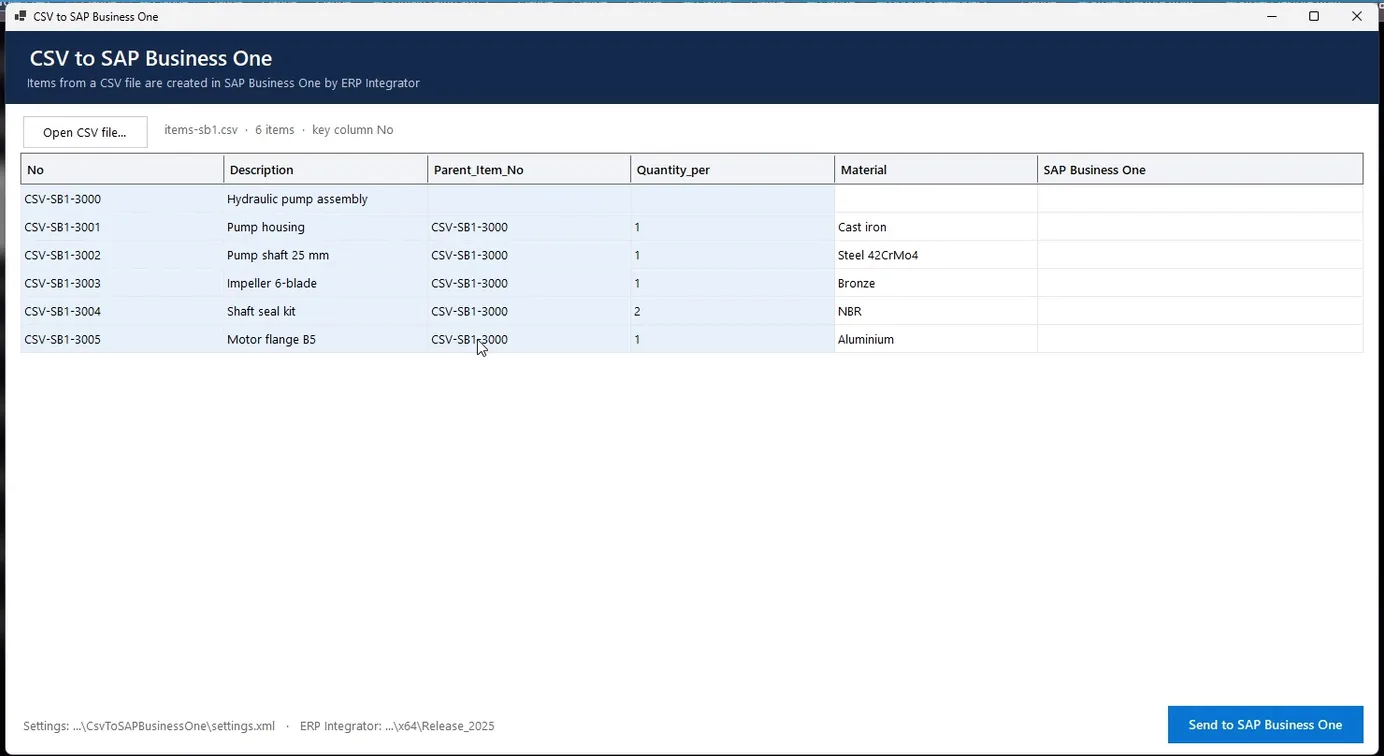
CSV to SAP Business One demo application listing six items from a CSV file with their parent item and quantity, the columns sent to SAP Business One tinted blue

Your application

The application reads its own data

The demo is a small Windows application that reads items from a CSV file: the item number, the description, the parent item and the quantity. The blue columns are the ones that go to SAP Business One; the material stays in the file.

  • Your data can come from anywhere: a file, a database, a model or the user's input.
  • Each item is handed over as a row of property names and values, keyed by the item number.
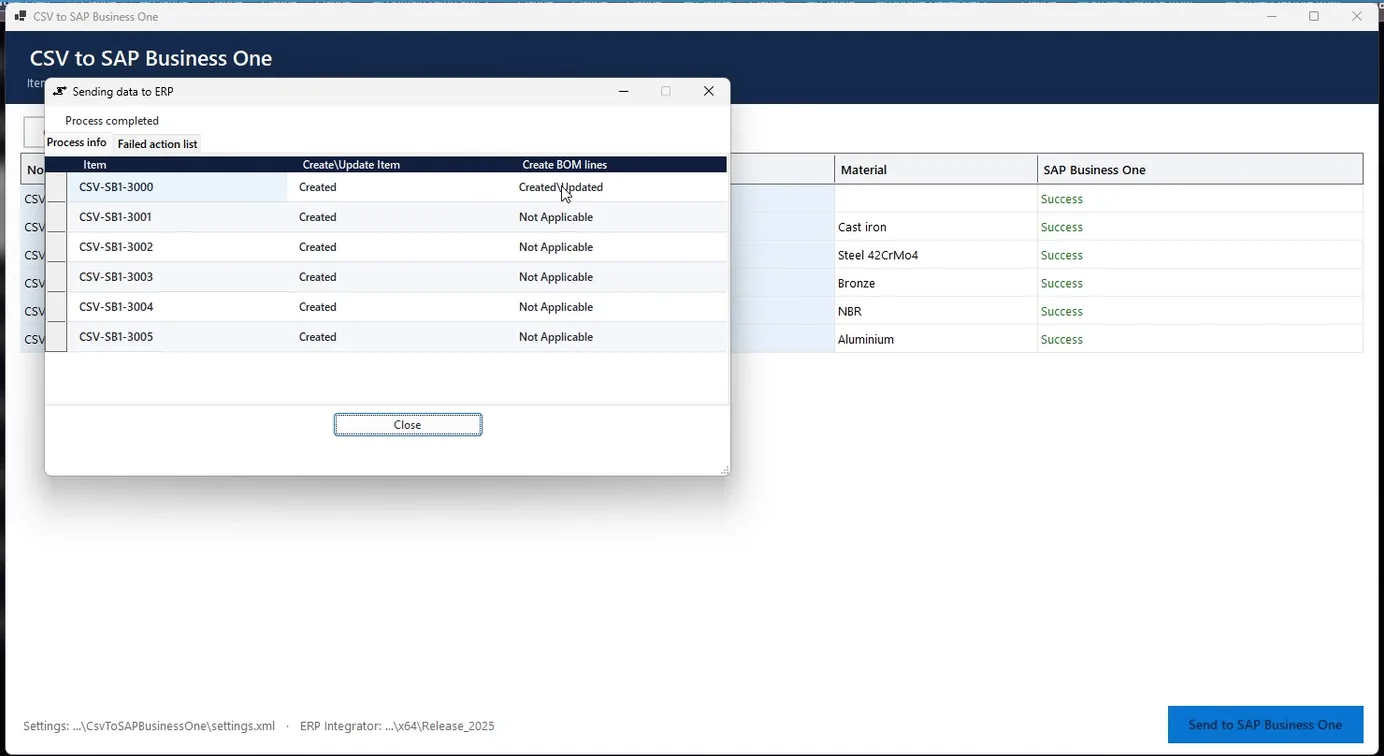
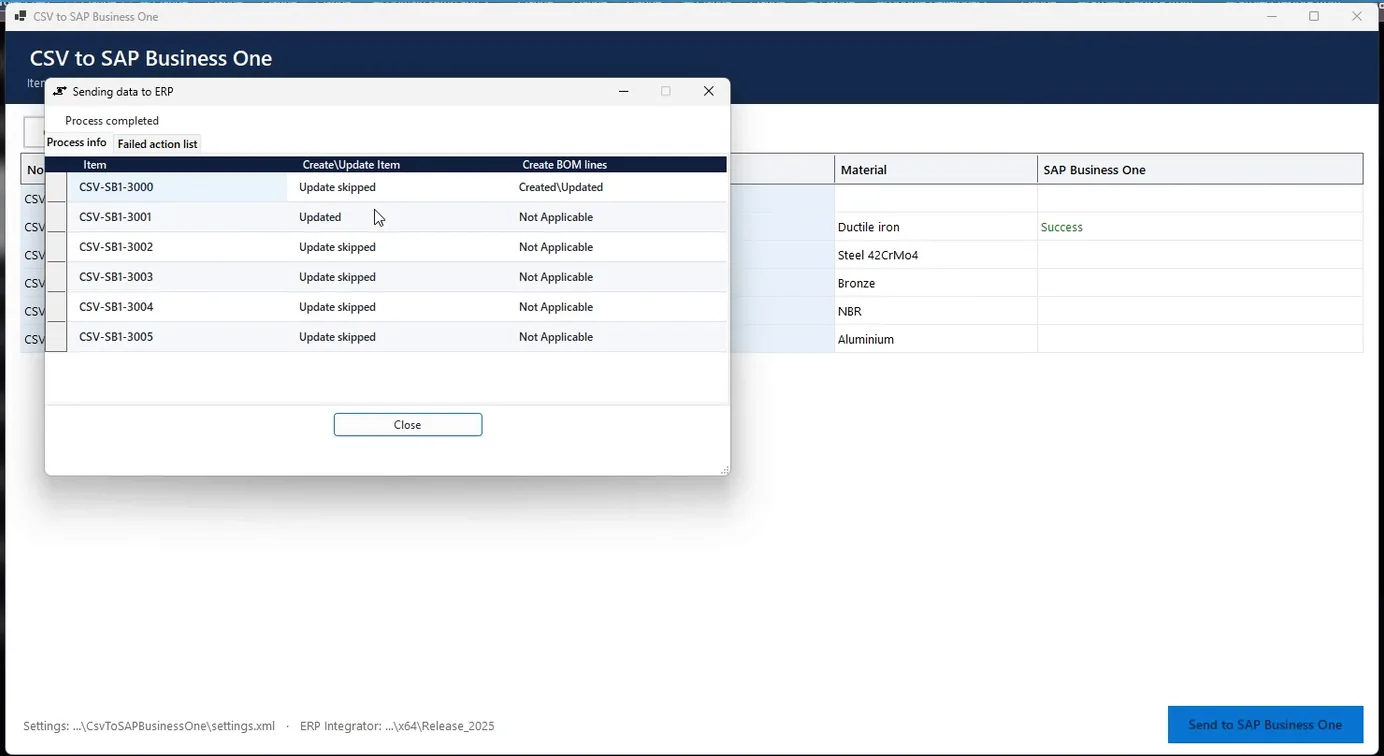
ERP Integrator status window over the demo application: six items Created in SAP Business One, the pump assembly bill of materials Created\Updated

Send

ERP Integrator creates the items and the bill of materials

Send to SAP Business One hands the rows to ERP Integrator. It connects to the Service Layer, checks which items already exist, creates the six items and builds the bill of materials of the pump assembly with its five lines. Every item is reported in the status window, and the result comes back to the application's own grid.

// 1. The engine, for SAP Business One, with the ERP Integrator settings
var engine = new ERPIntegrator.Class1("SAP Business One", "sb1",
    WriteLog, null, UpdateStatus, null, dependencies,
    settings, GetProperty, logfile, SaveSettings, ...);

// 2. Your data: one row per item, and the BOM lines of each parent
items["CSV-SB1-3004"] = new() { ["No"] = "CSV-SB1-3004",
    ["Description"] = "Shaft seal kit" };
bom["CSV-SB1-3000"].Add(new() { ["No"] = "CSV-SB1-3004",
    ["Quantity_per"] = "2" });

// 3. Send: ERP Integrator maps, creates or updates, and reports each item
engine.SendtoERP(ref message, ref ok, ..., ref items, ref bom,
    ..., ref keyColumn, null);

For developers

A few calls in your code

Create the engine for SAP Business One with your settings, hand it the rows and the bill of materials lines, and call send on a worker thread. The engine calls back for a property of an item, for the result of each item and for the log.

  • Which value goes to which SAP Business One field, and your company's rules, are kept in the ERP Integrator settings, not in your code.
  • The application loads ERP Integrator from the folder its installer puts it in, so it picks up updates without being rebuilt.
  • Ask us for the sample project when you start your own integration.
Second send: CSV-SB1-3001 Updated, the other items Update skipped, the pump assembly bill of materials Created\Updated

Send again

Only what changed is updated

When the data changes, just send again. In the demo's second file one description and one quantity have changed: only the pump housing is updated, the unchanged items are reported as Update skipped, and the bill of materials gets the new quantity. No duplicates.

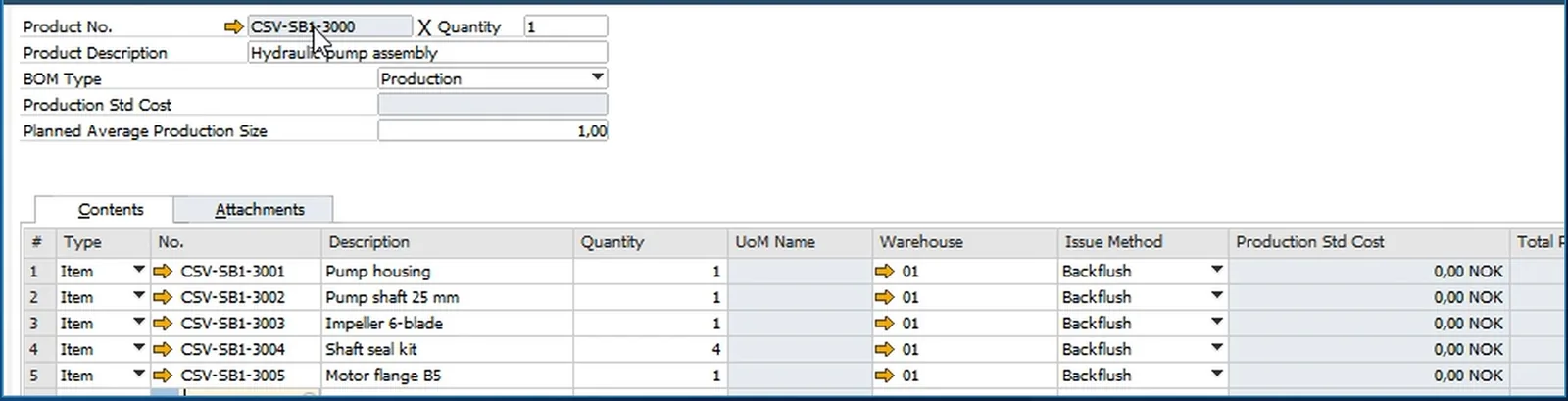
SAP Business One bill of materials for CSV-SB1-3000 Hydraulic pump assembly with five lines, four shaft seal kits

Result in SAP Business One

Items and the bill of materials in SAP Business One

In SAP Business One the six items are there with their descriptions, and the bill of materials of the pump assembly lists its five lines, with four seal kits, exactly as in the file.

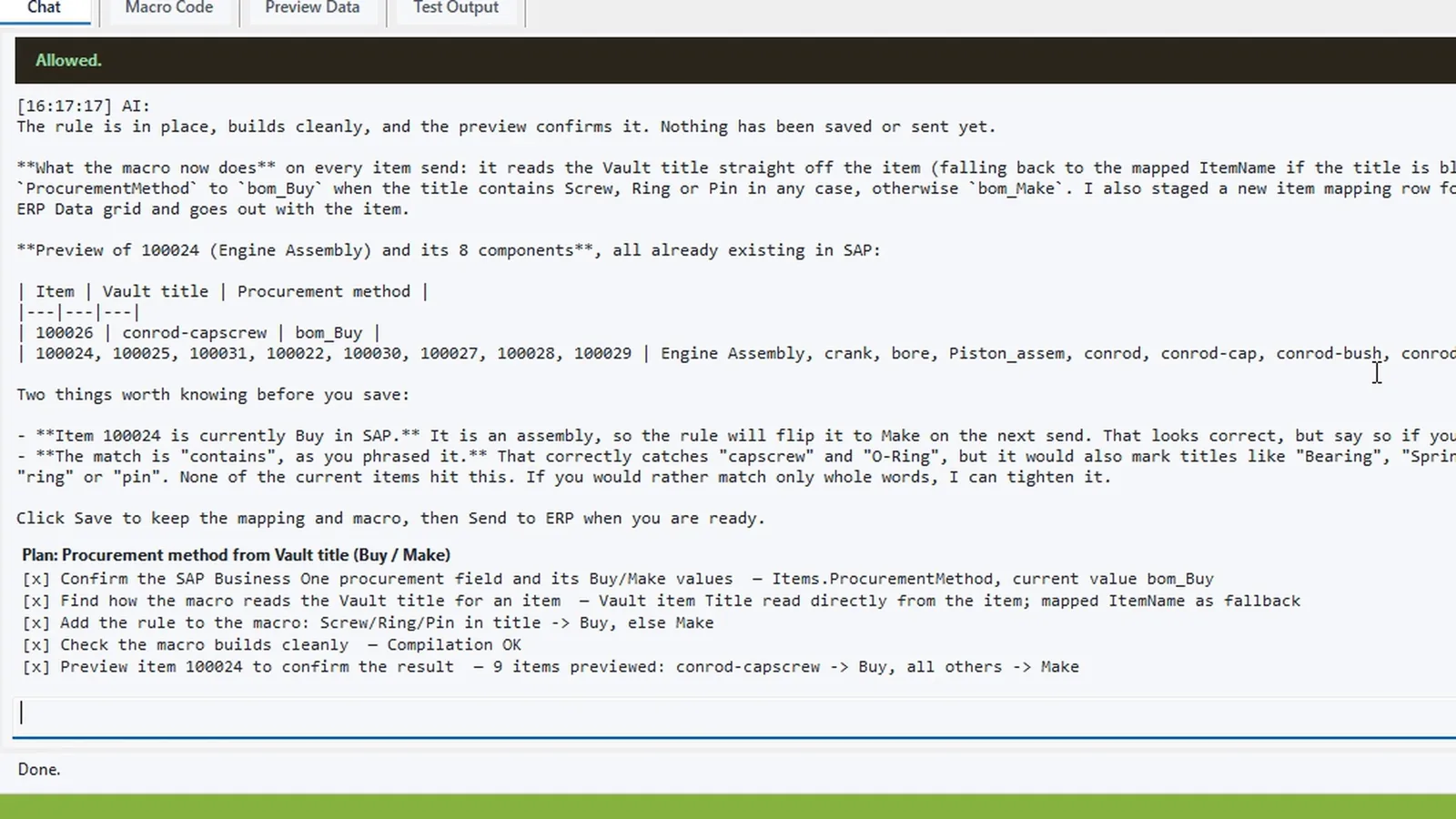
AI Macro Generator preview: a Buy/Make rule for SAP Business One previewed per item before anything is sent

Rules and AI

Company rules in plain language, not in your code

The field mapping decides which property fills which SAP Business One field and holds fixed values such as the item group. Rules that go further, such as Buy or Make depending on the description, live in a macro that ERP Integrator runs before every send. The AI Macro Generator writes that macro from a plain-language request, checks that it compiles and previews the result before anything is sent. The picture shows it in Autodesk Vault; the macro works the same for every application on the engine.

Related integrations

The same engine, ready-made for your CAD, PDM and Excel

If your data lives in one of these applications, the SAP Business One integration already exists. The engine also sends to Business Central, Dynamics 365 Finance and Operations, SAP S/4HANA and Odoo.

FAQ

Questions about ERP Integrator for SAP Business One

What kind of application can use ERP Integrator?

Any 64-bit Windows application on .NET 8, written in C#, VB.NET or C++/CLI. It references the ERP Integrator assemblies, gives the engine its data as rows of property names and values, and calls the send. The CAD and PDM integrations on this site are built the same way, for example Autodesk Vault, SOLIDWORKS PDM and Excel to SAP Business One.

How does ERP Integrator connect to SAP Business One?

Through the SAP Business One Service Layer. The connection, the company and the field mapping are kept in the ERP Integrator settings, the same settings the other integrations use.

Can our application send bills of materials too?

Yes. Besides the items, the application passes the bill of materials lines of each parent item, and ERP Integrator creates or updates the bill of materials in SAP Business One. On a resend, unchanged items are skipped and changed lines are updated, without duplicates.

Who decides which value goes to which SAP Business One field?

The settings, not your code. The field mapping says which property of your data fills which field and holds fixed values; rules that go further are written in a macro, which the AI Macro Generator can write from a plain-language request.

Does it work with other ERPs than SAP Business One?

Yes. The same engine and the same calls send to Business Central, Dynamics 365 Finance and Operations, SAP S/4HANA and Odoo; the ERP is named when the engine is created. See also ERP Integrator for Business Central and ERP Integrator for SAP S/4HANA Cloud.

Connect your application to SAP Business One

Tell us what your application holds and which SAP Business One records it should create. We will show ERP Integrator sending your own data and help you set up the first integration. Or write to us with your SAP Business One version and the fields you fill by hand today.

Cookies Notice

We use cookies to improve your browsing experience and to understand how our website is used. Cookies help us deliver better performance, personalize content, and analyze traffic. By continuing to use PLM CAD Utilities, you agree to our use of cookies.